Step : 01
- The narrator demonstrates forwarding traffic from a public WAN address to a local web server with the IP
10.0.0.5.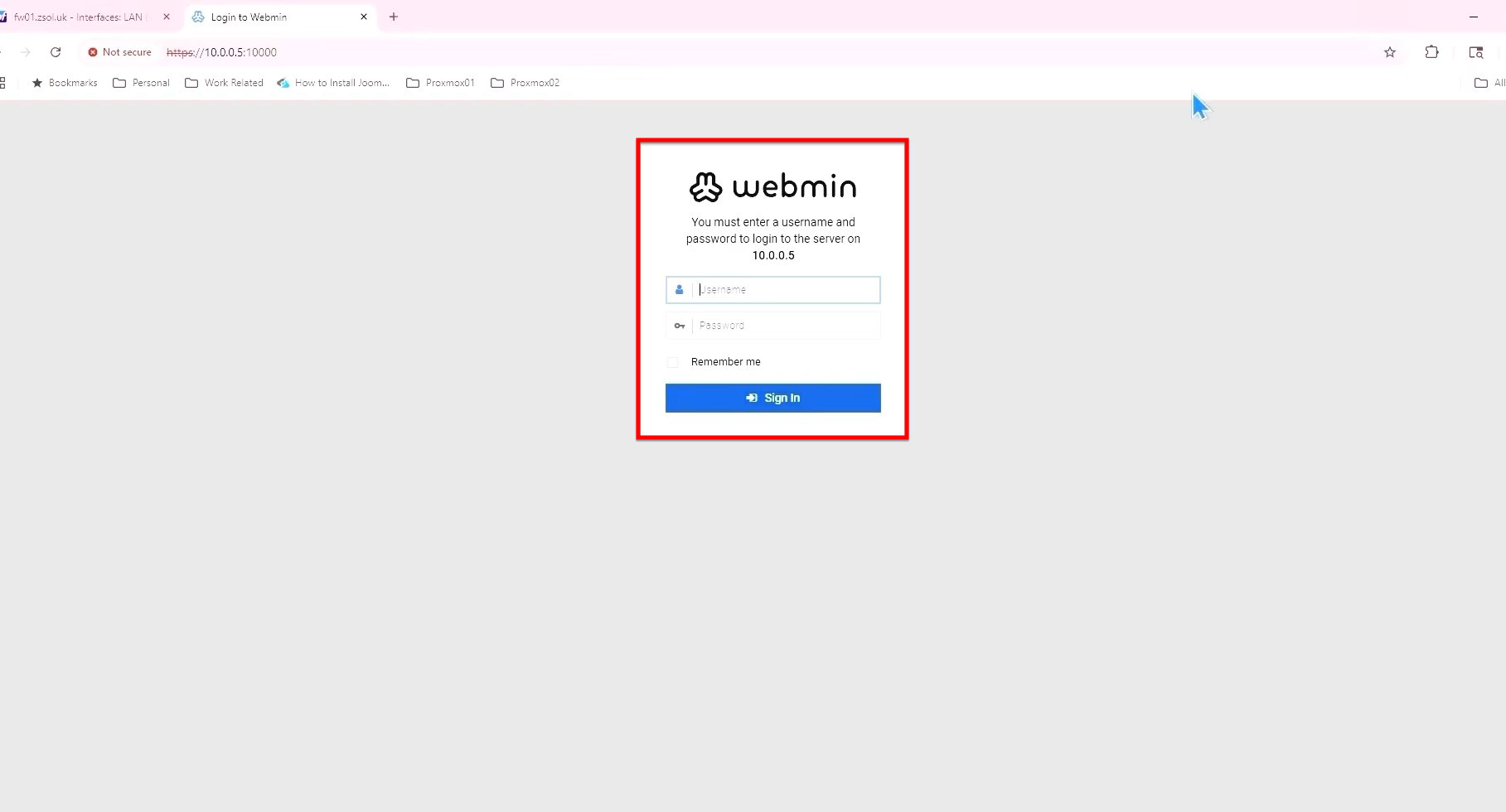
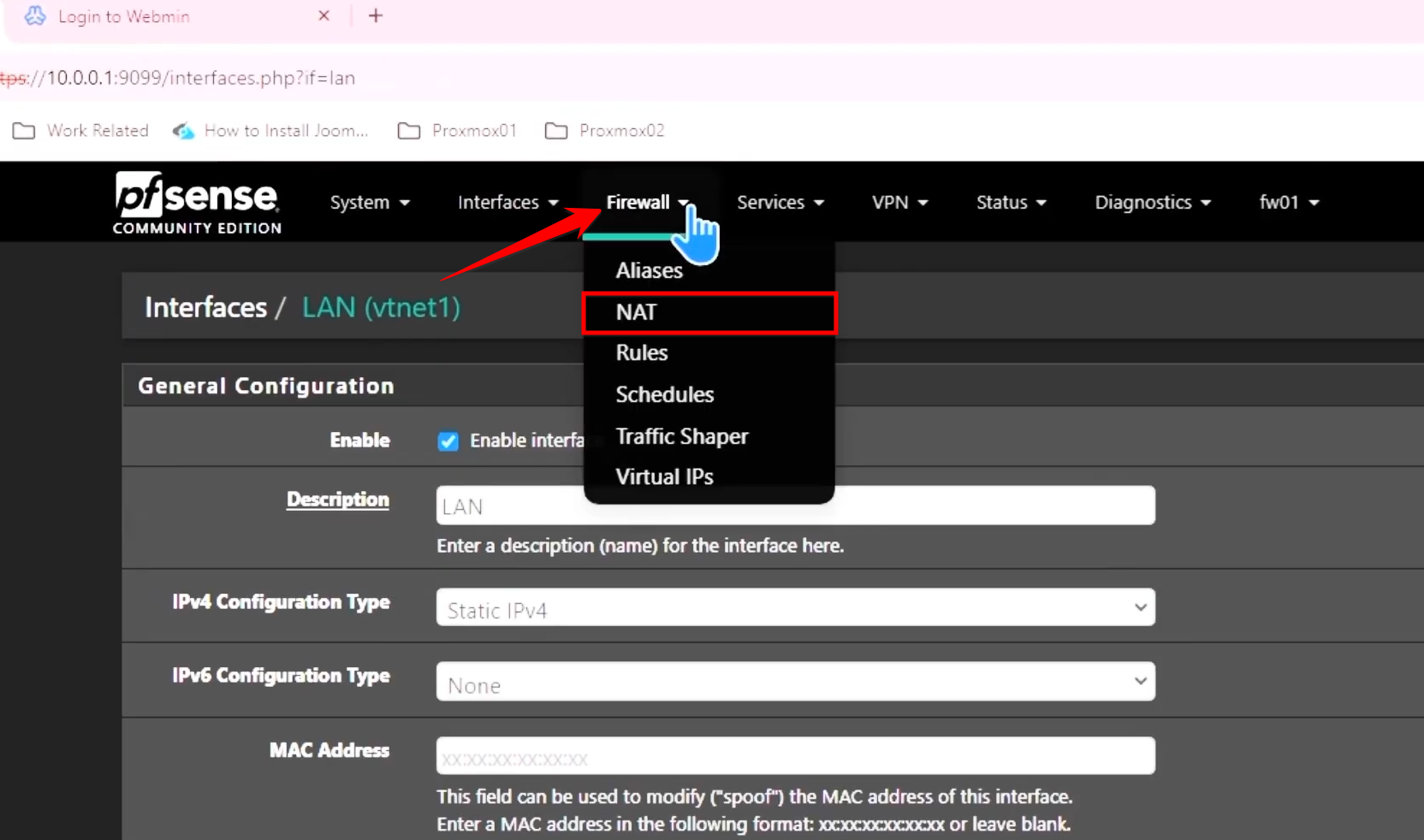
- To begin, go to Firewall > NAT in the pfSense menu.
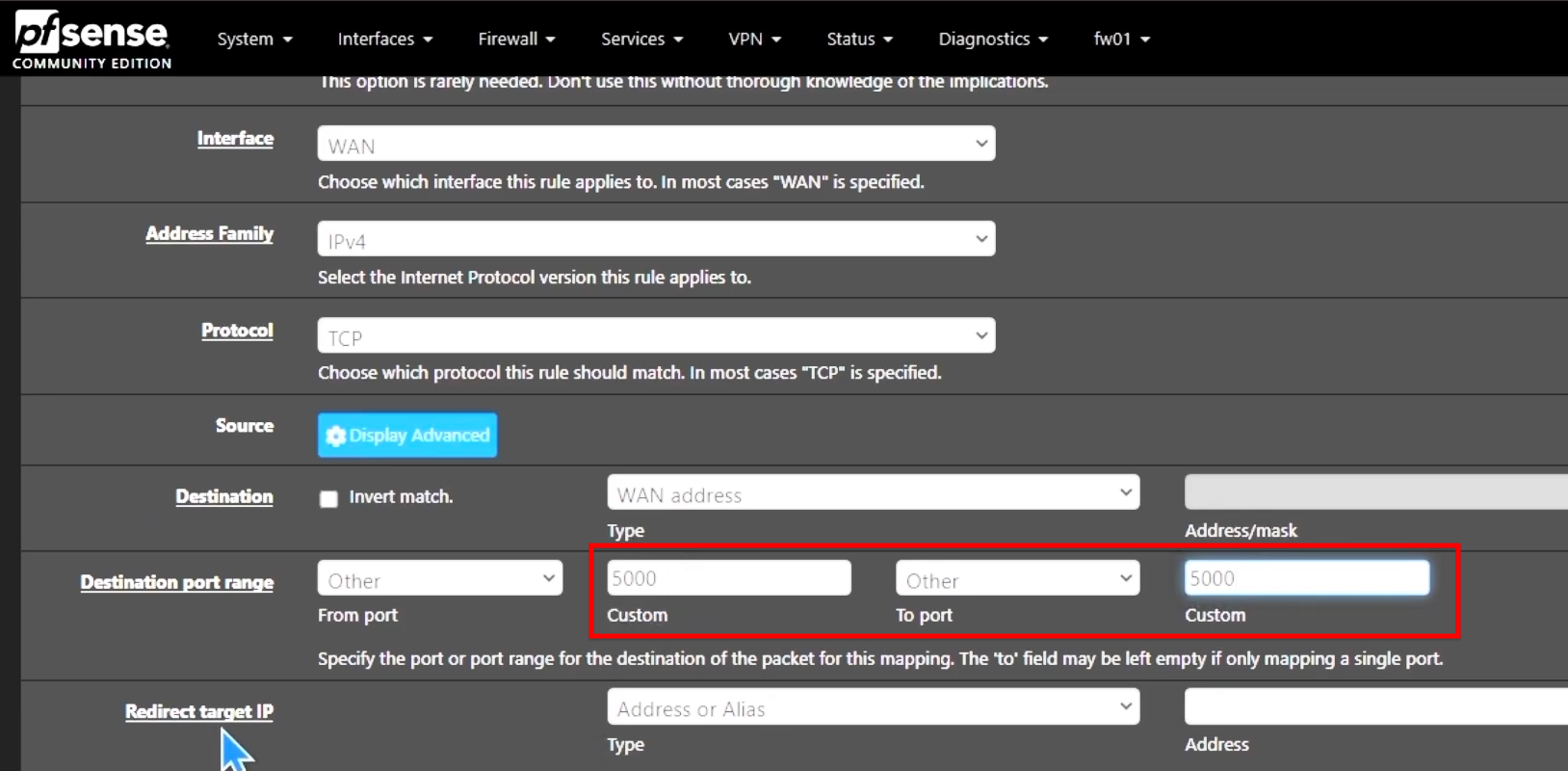
- Specifically, they want to use external port 5000 to reach the server’s actual listening port.
Step : 02
- Set to WAN.
- Selected as TCP .
- Set to Any to allow access from any external location.
- Select WAN address.
- Select Other and enter 5000.
- Enter the local IP of your server,
10.0.0.5.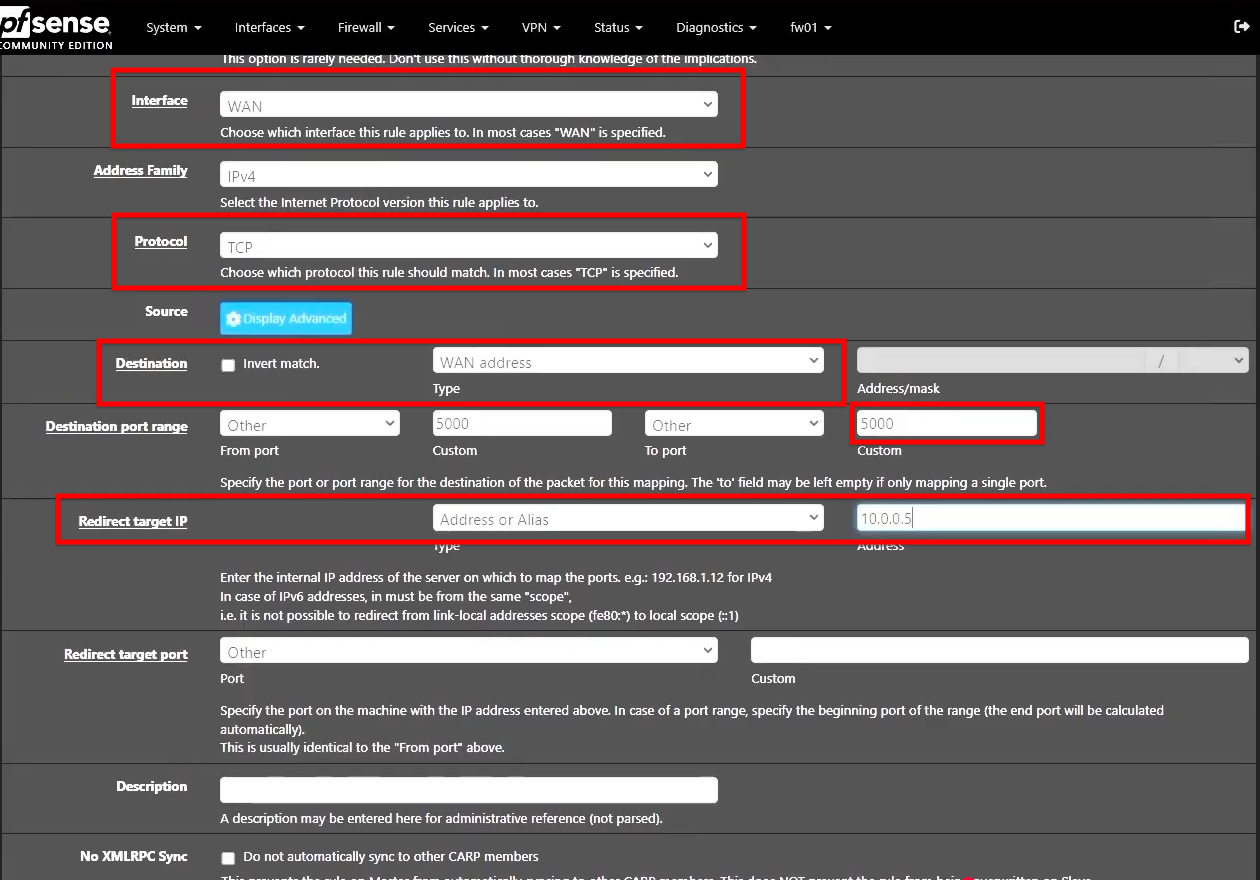
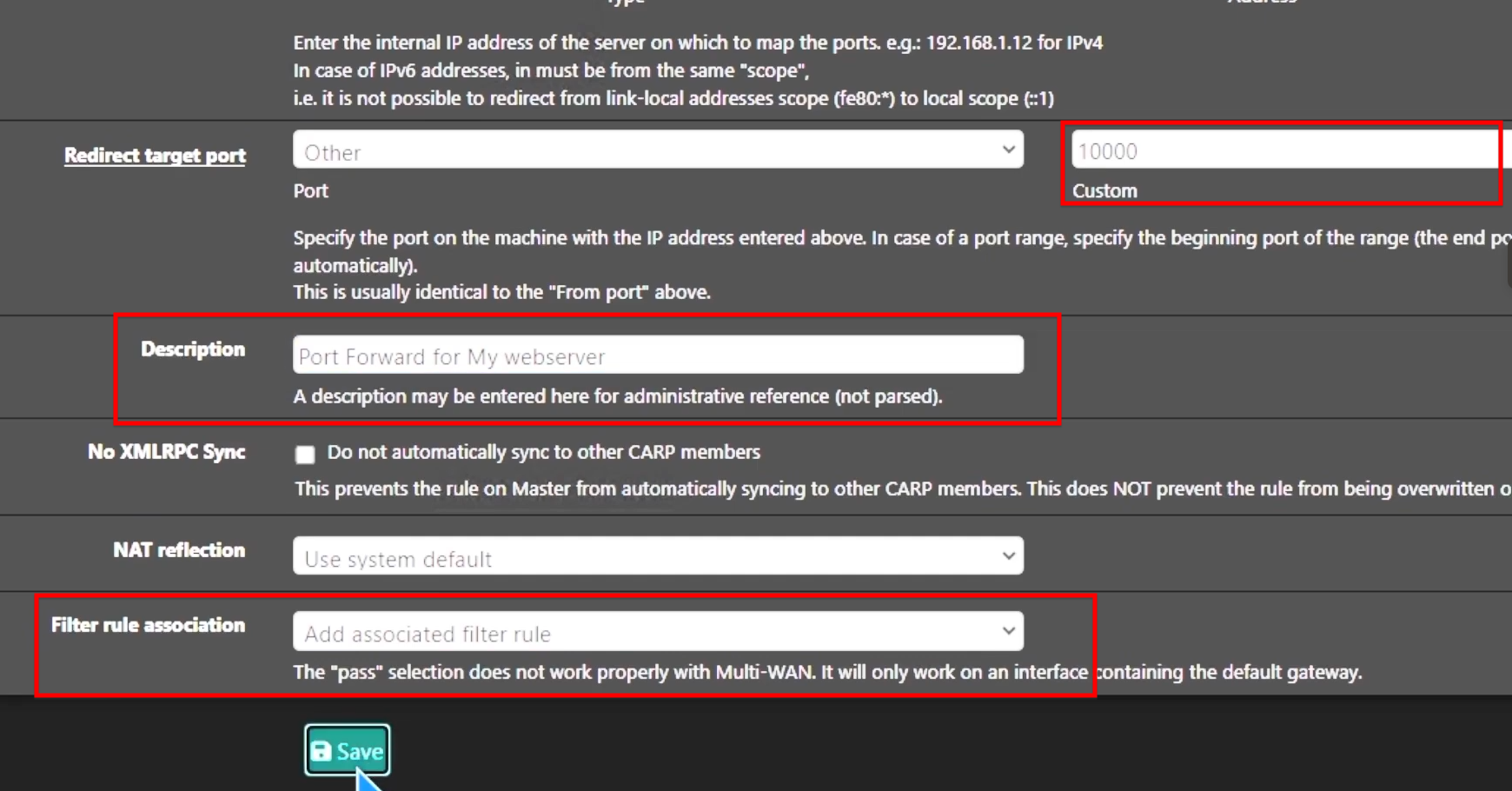
- Enter the internal port used by the service, which is 10000 in this example.
- Ensure “Add associated filter rule” is selected so pfSense automatically creates the necessary firewall rule to allow the traffic.
- Click Save and then Apply Changes.