
Nginx Proxy Manager (NPM) is a powerful web-based reverse proxy solution that simplifies the process of managing proxy hosts, SSL certificates, and access control rules. It provides a user-friendly dashboard for handling multiple web applications behind a single IP address. In this guide, we will install Nginx Proxy Manager on a Proxmox container.
System Requirements
Before installing, ensure your Proxmox container meets the following requirements:
- CPU Core: 1
- Memory: 512 MB
- Disk Size: 4 GB
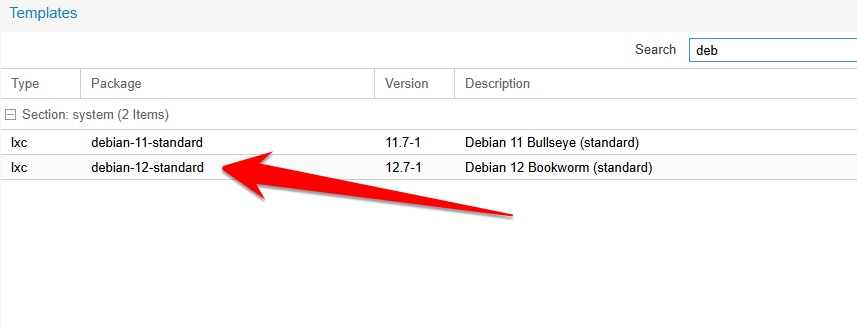
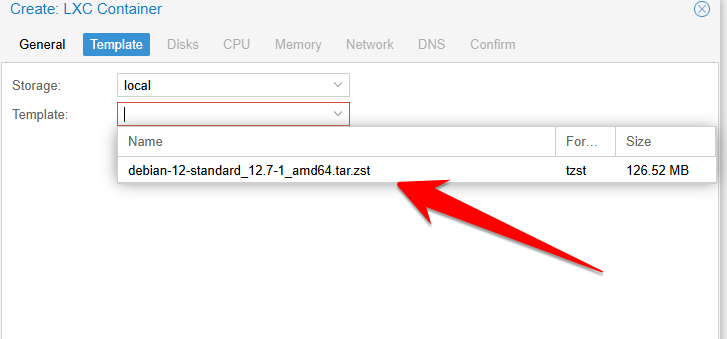
- OS: Debian-based (Recommended: Debian 12)
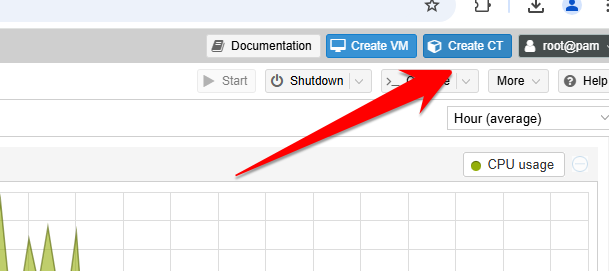
Installation Steps
-
Update and Upgrade the System
Run the following command to update the system packages:
-
Install Nginx Proxy Manager
Use the following command to install NPM via a Proxmox-friendly installation script:
sh -c "$(wget --no-cache -qO- https://raw.githubusercontent.com/ej52/proxmox/main/install.sh)" -s --app nginx-proxy-manager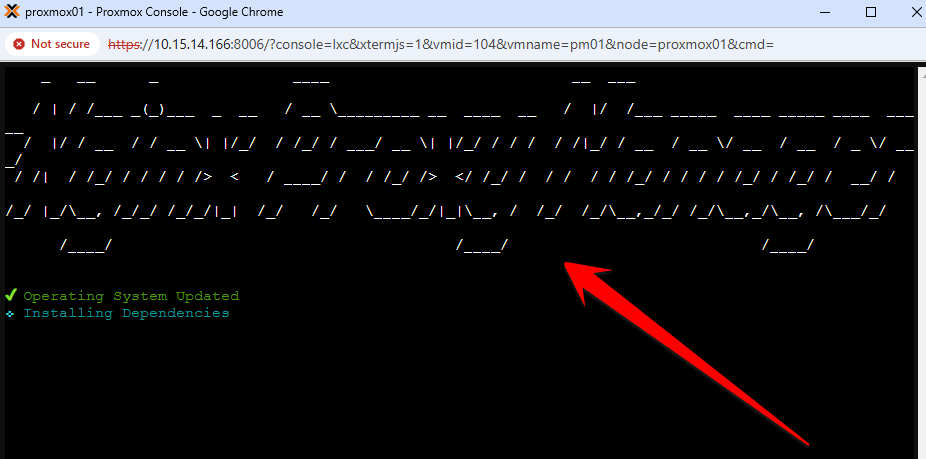
-
Accessing Nginx Proxy Manager
Once the installation is complete, access the web interface by entering your container’s IP address with port 81 in a web browser:
-
Default Login Credentials
- Username: [email protected]
- Password: changeme
After logging in, update the admin credentials for security.
Nginx Proxy Manager simplifies reverse proxy configurations, SSL certificate management, and domain routing with an easy-to-use graphical interface. Once installed, you can start adding proxy hosts and securing your web services efficiently.




Thank you for sharing this tutorial. When trying to install Nginx as explained in step 2, I got an error message:
✘ Dependencies not Installed
E: Unable to locate package yarn
[ERROR] on line 53 with exit code 100 while executing command pkg_del
root@nextcloud:~#
How can I solve this problem?
Thanks,
Peter
I followed your video and the script completed most of the way through but then got this output. Any thoughts on this?
cp: cannot stat ‘global/*’: No such file or directory
[ERROR] on line 275 with exit code 1 while executing command cp -r global/* /app/global
Hello,
Did you use Debian 12 template on container?
It was tested only on Debian 12