
Port forwarding, also known as Destination Network Address Translation (DST-NAT), is a fundamental technique for accessing internal network services—such as a web server, game server, or, in this case, a RADIUS management panel—from the outside world using your router’s public IP address.
This guide will show you how to configure a successful port forward on a MikroTik router using the WinBox interface.
Step 1: Configure the Internal Interface and DHCP
We need to create the internal network where your server resides.
-
Assign an IP Address: Go to IP > Addresses and add a new IP address for your internal interface (e.g.,
ether3).-
Address:
172.16.10.1/24 -
Interface:
ether3(or your chosen internal port)
-
-
Set up DHCP Server: Go to IP > DHCP Server. Click DHCP Setup and select the interface you just configured (
ether3). Follow the prompts to create the DHCP server.
-
Verify Server IP: Ensure your internal device (e.g., the DMS Soft Lab) is now automatically receiving an IP address from the MikroTik’s new range (e.g.,
172.16.10.254).
2. Configuring the Destination NAT (Port Forwarding) Rule
The core of the process is creating a DST-NAT rule to map incoming external requests to the correct internal server.
-
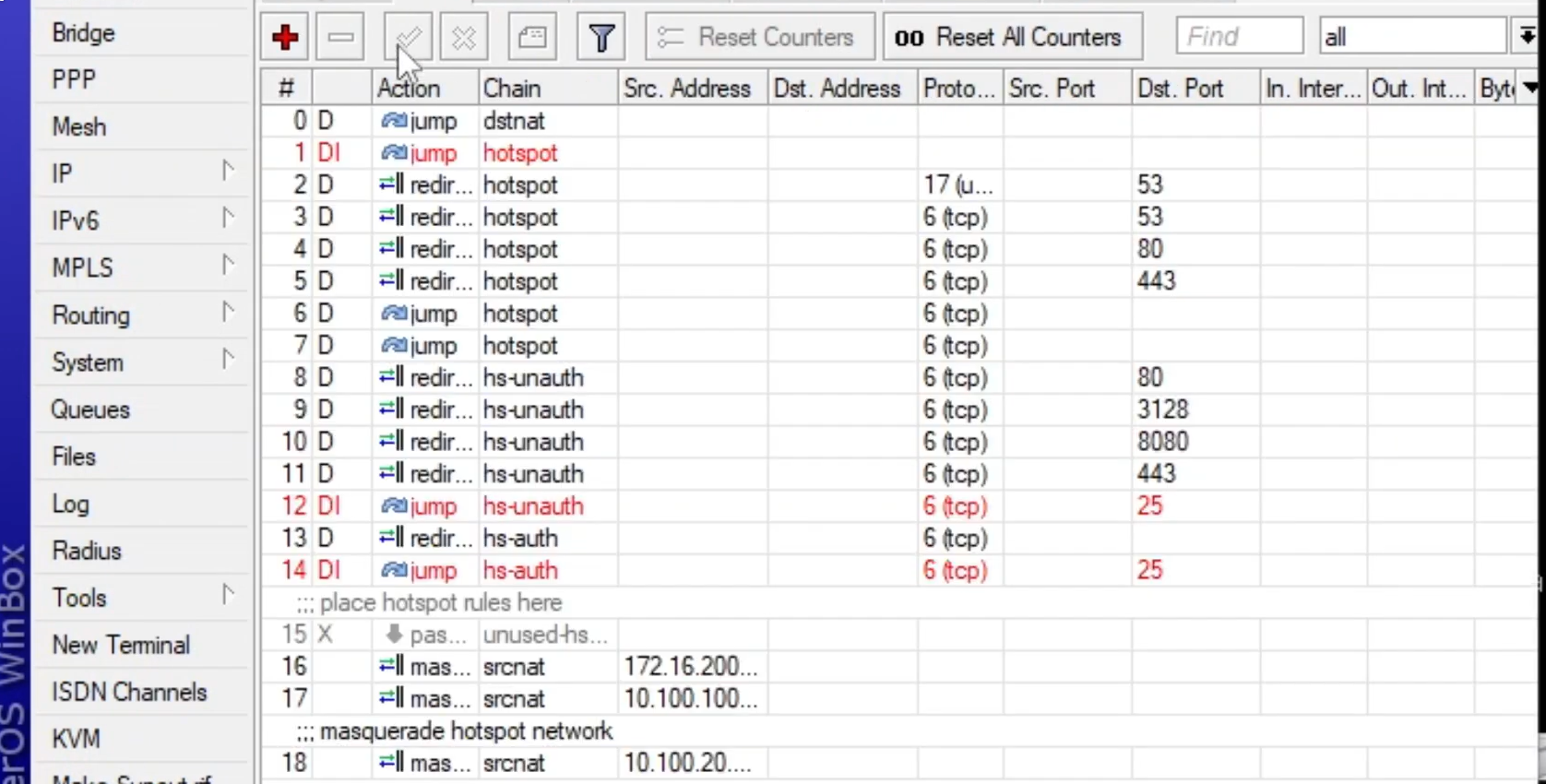
Navigate to Firewall NAT: Go to IP > Firewall and select the NAT tab.
-
Create a New Rule: Click the + button to add a new NAT rule.
-
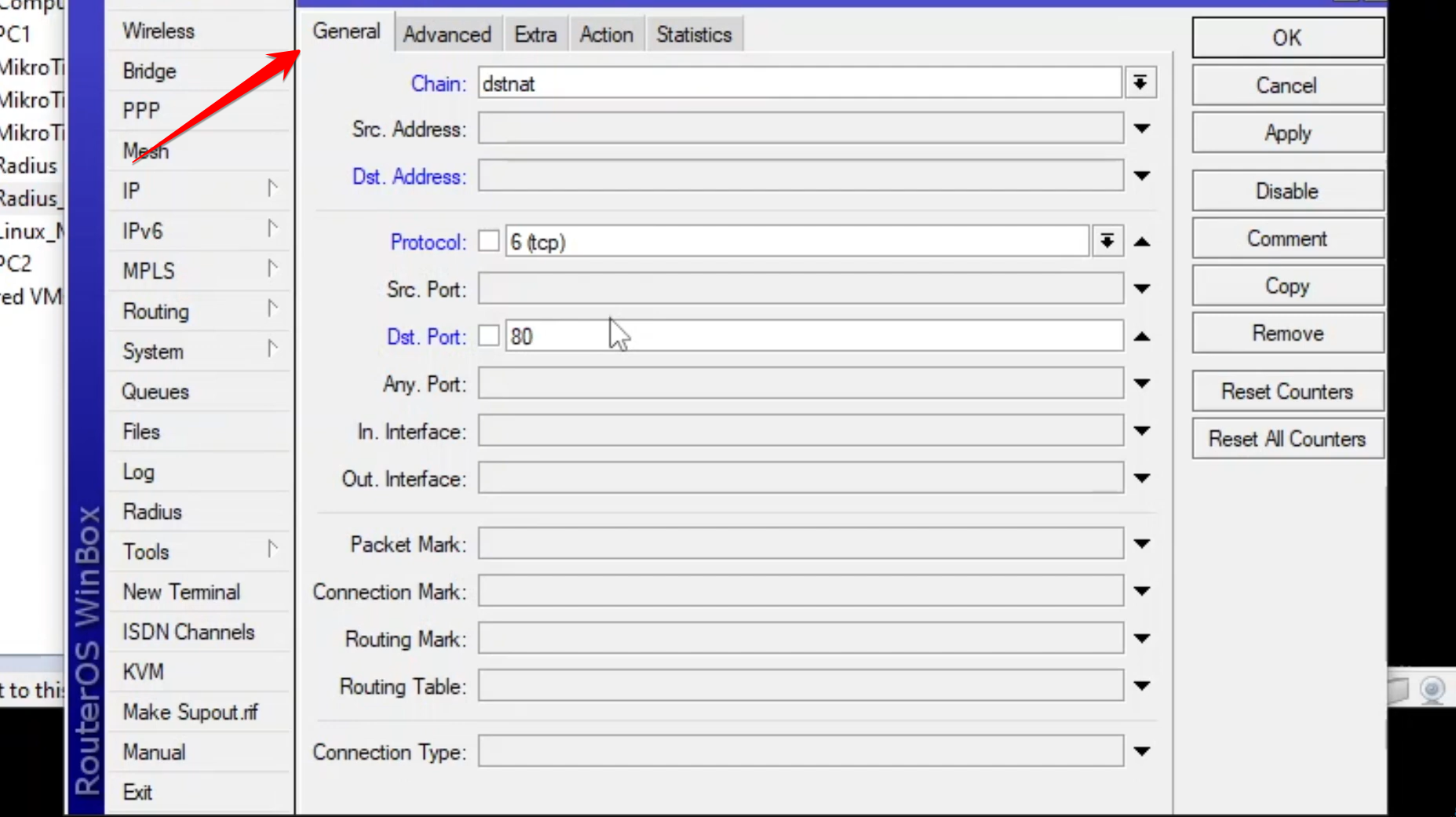
Configure the General Tab (DST-NAT):
-
Chain: Select
dstnat. -
Protocol: Select
tcp. -
Dst. Port: Enter the external port you want to use (e.g.,
8081). This is the port you will type into your browser from the outside.
-
-
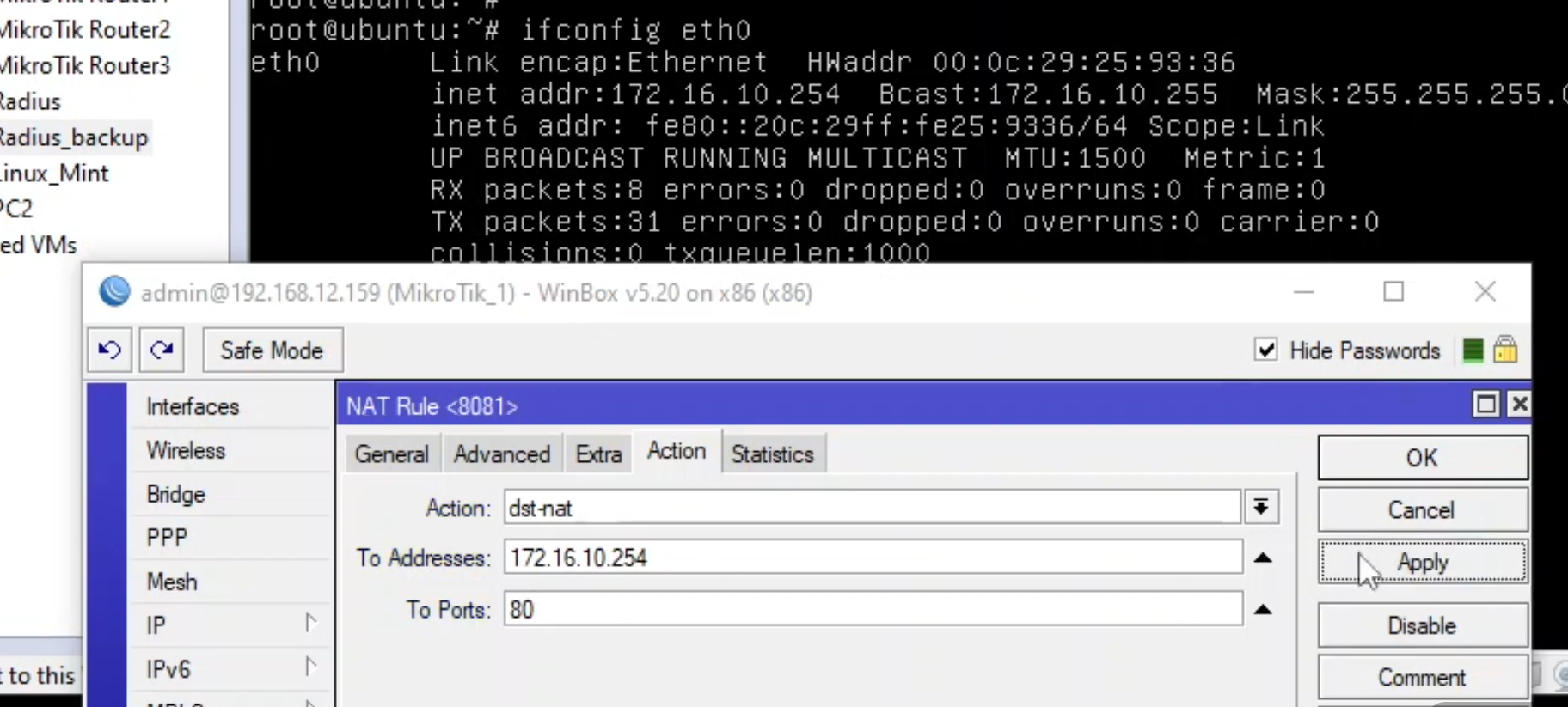
Configure the Action Tab: Switch to the Action tab.
-
Action: Select
dst-nat. -
To Addresses: Enter the internal IP address of your server (e.g.,
172.16.10.254). -
To Ports: Enter the internal port the server is listening on (e.g.,
80).
-
-
Apply and OK.
3. Verification
Once the rule is created, you can test it by attempting to access your service from an external machine using your MikroTik’s WAN address and the new external port.
-
Identify WAN IP: Find the WAN (external) IP address of your MikroTik router (e.g.,
192.168.12.159/24).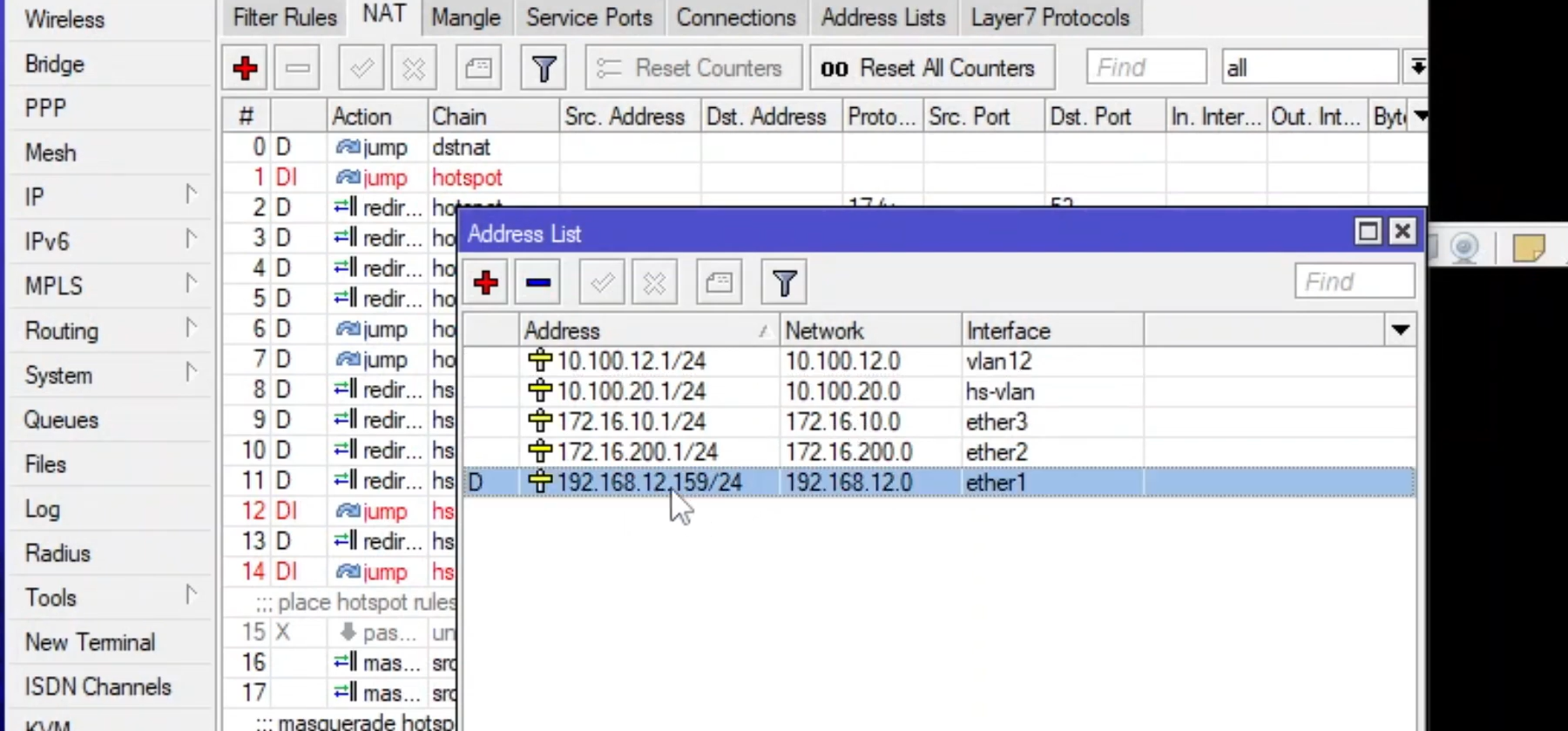
-
Test the Forward: In a web browser on a machine outside of the
172.16.10.0/24network, type the WAN IP followed by the external port you chose (e.g.,http://192.168.12.159:8081). -
Success: If configured correctly, you should now be able to access your internal service.