
Step : 01
- Navigate to Interfaces > WAN.

- Scroll to the bottom and uncheck the boxes for:
- Block private networks and loopback addresses
- Block bogon networks.
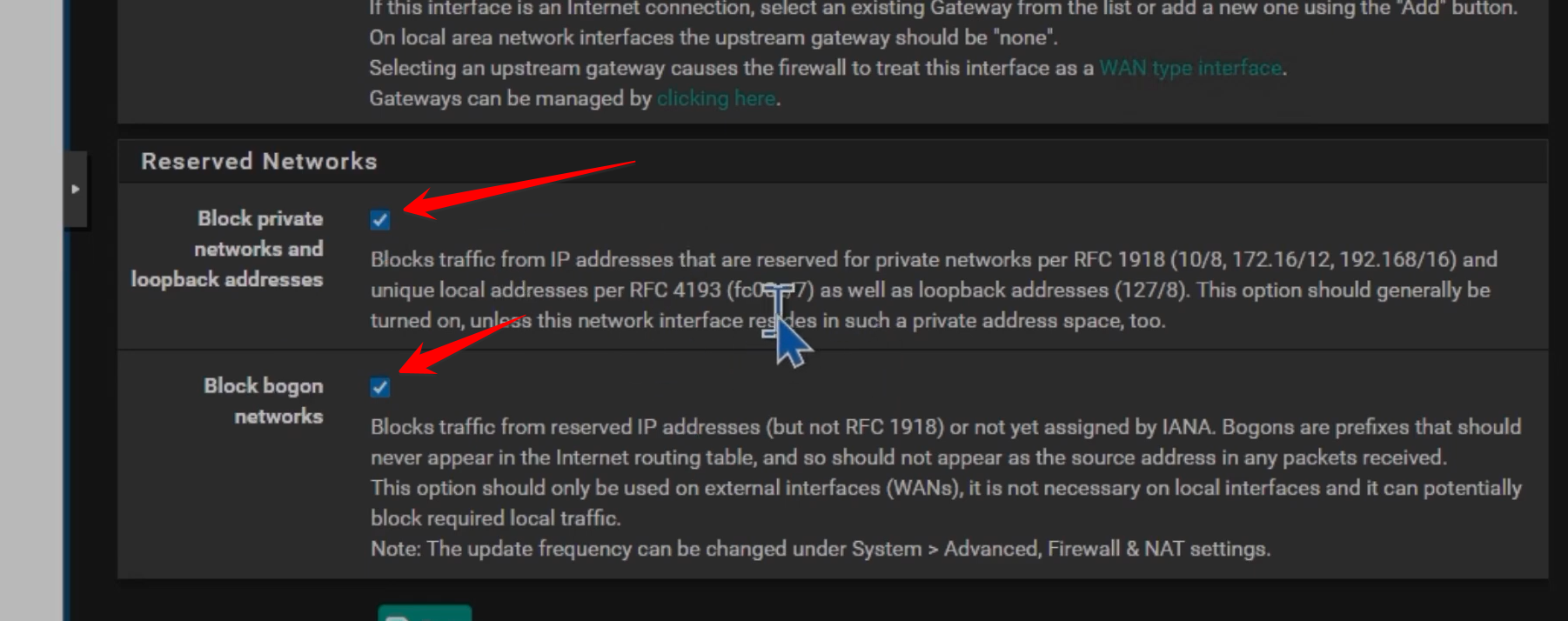
- Click Save and Apply Changes. This removes the default rules that block unsolicited traffic from reaching the WAN interface.
Step : 02
- Go to Firewall > Rules > WAN.
- Click the Add (Up Arrow) button to add a rule to the top of the list.

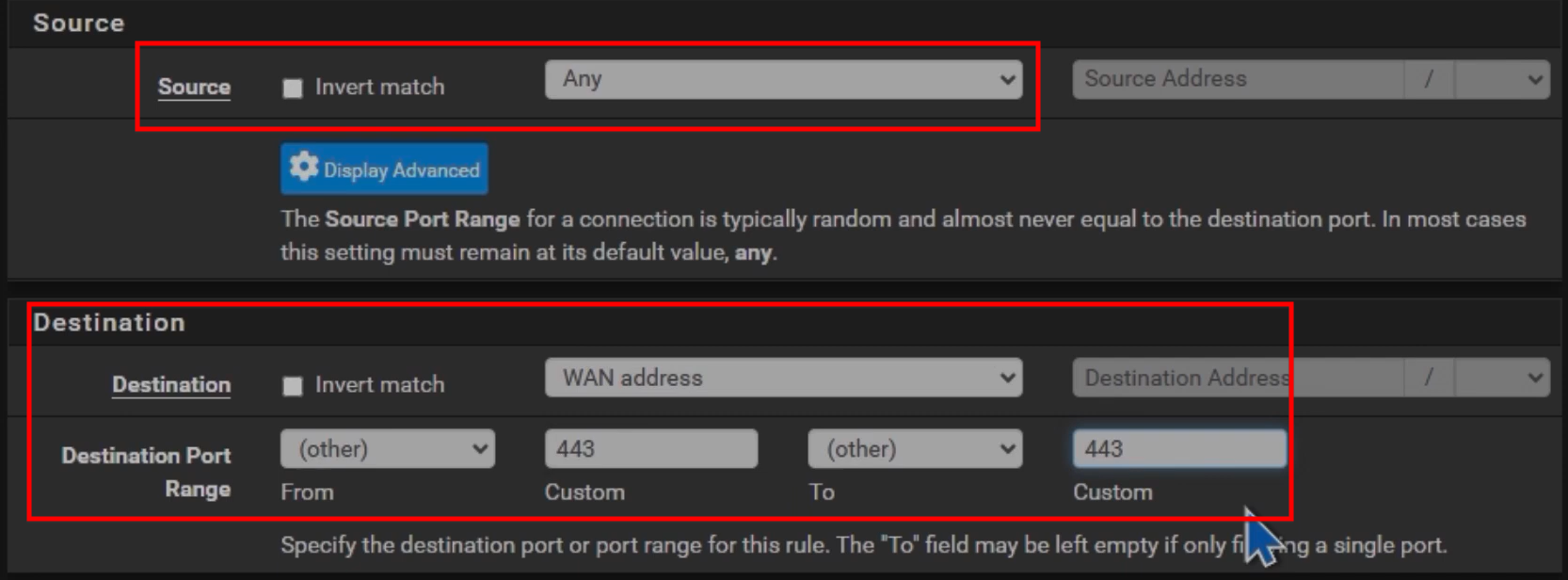
- Set to Pass.
- Select TCP.

- Set to Any (or specify your remote IP for better security).
- Select WAN address.
- Enter 443 (HTTPS) for the web configurator.
- Save and Apply Changes.
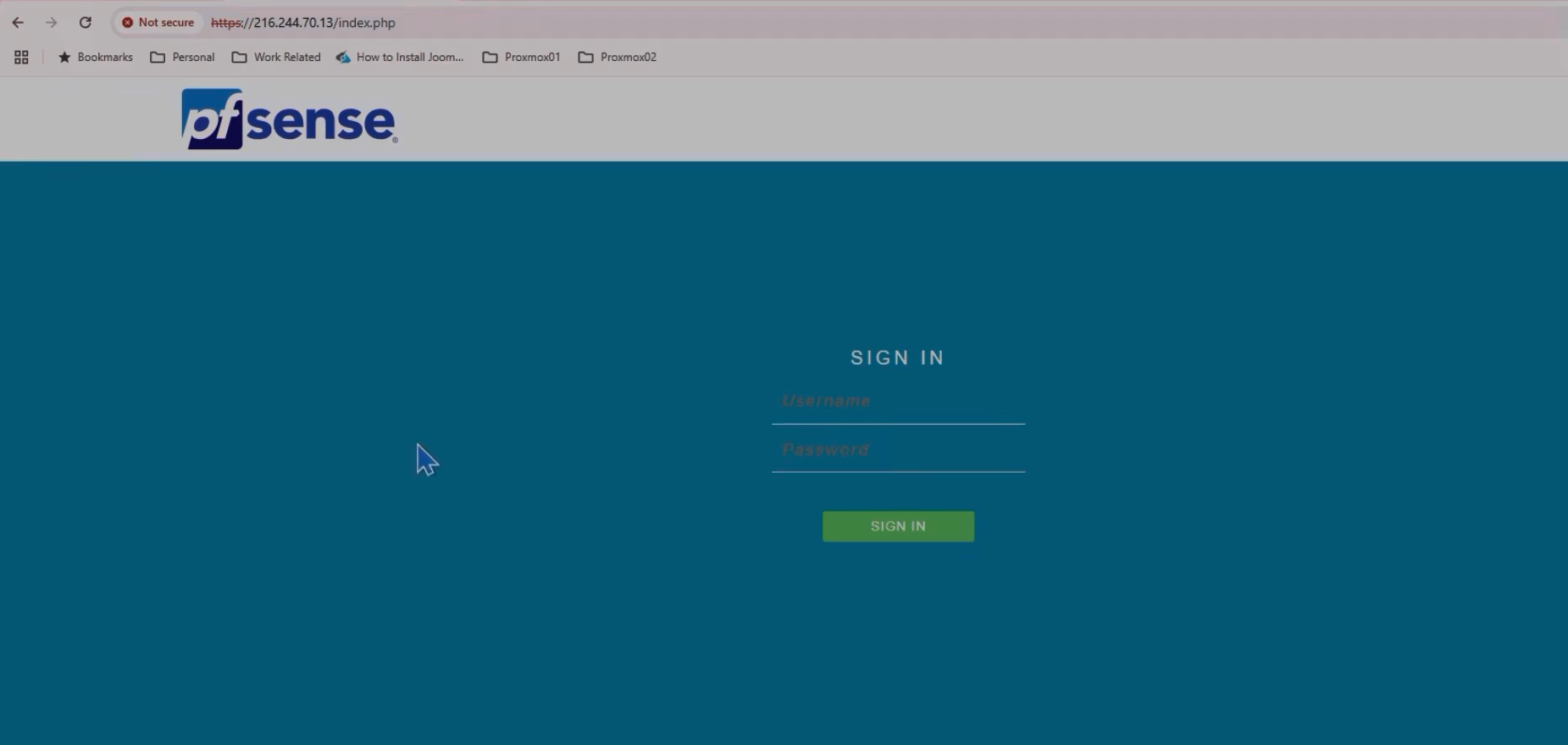
- Once these steps are completed, you will be able to reach the pfSense login page by entering your WAN IP address into a web browser.
 The narrator advises reverting these changes (deleting the rule and re-checking the block boxes) as soon as you have finished your remote tasks.