
Step : 01
- The narrator demonstrates how to delete unwanted widgets and add useful ones like Interfaces, SMART Status (disk health), Traffic Graphs, and Gateways.

- You can drag and drop widgets to your preferred locations.

- It is important to click the Save button after adding or moving widgets to ensure the new layout is preserved.

- You can change the dashboard from two columns to three columns in the General Setup to fit more information on the screen.

Step : 02
- Navigate to System > General Setup to select different themes, such as Compact Red or Dark.

- If you know HTML or CSS, you can download and add your own custom themes to the pfSense configuration folder.
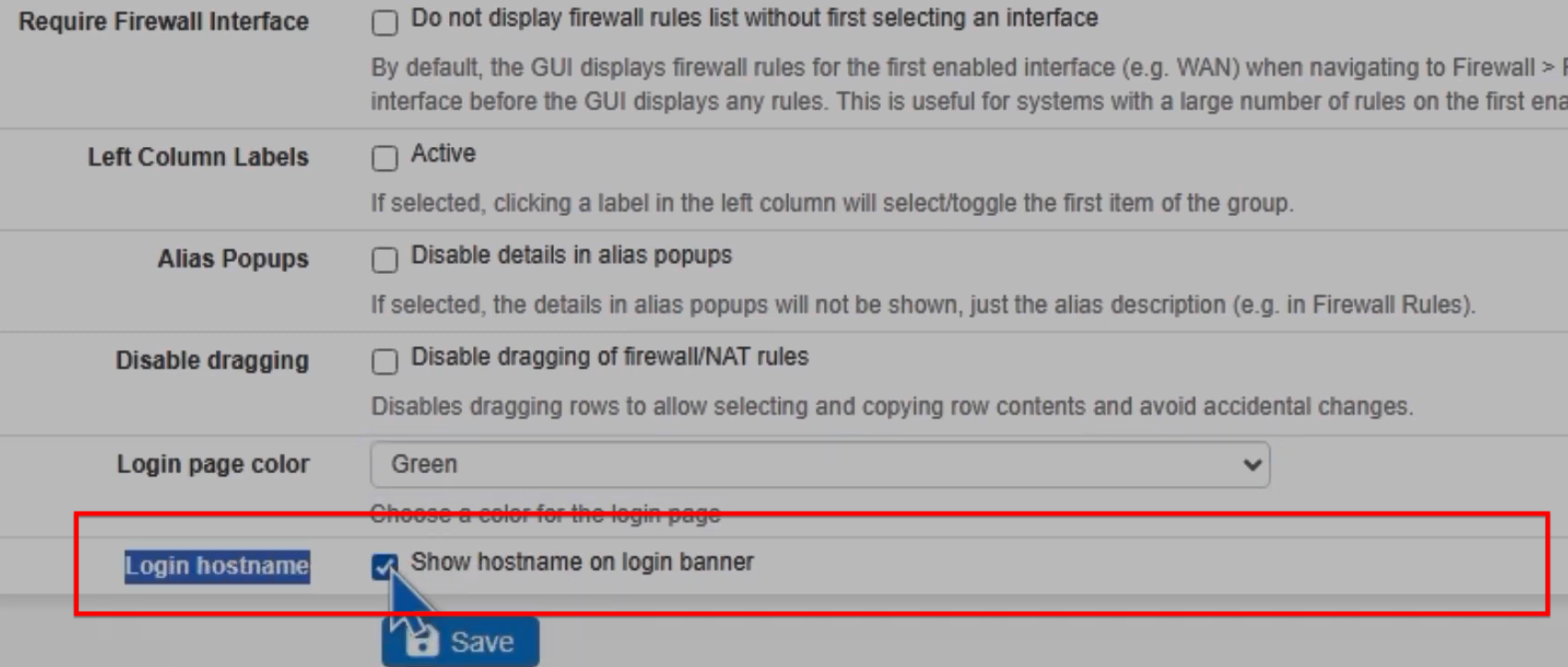
- You can change the default login page color (e.g., to green or light blue).
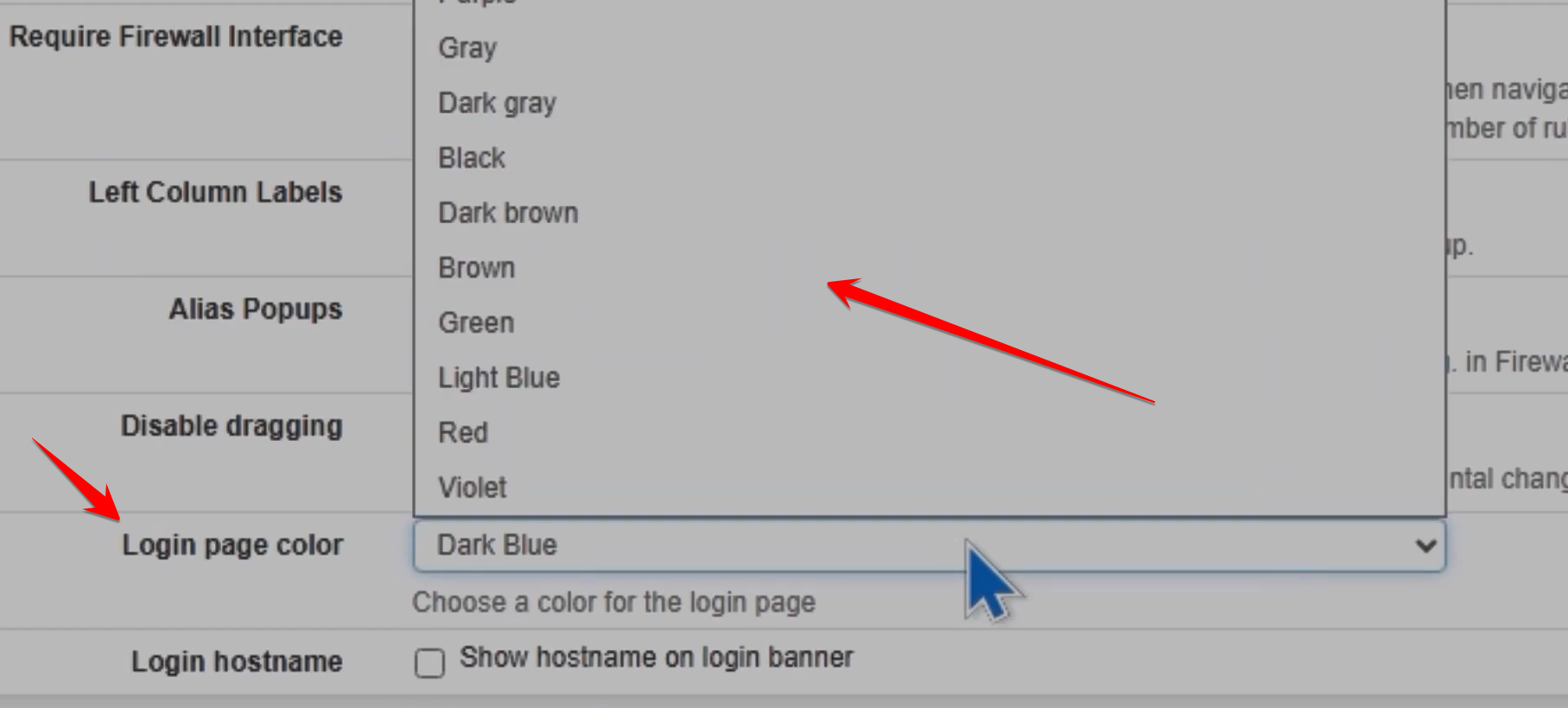
- Enabling the hostname on the login banner is particularly helpful for identifying which specific firewall you are logging into when managing multiple devices.
- Setting the top navigation to “Fixed” ensures the menu stays at the top of the screen even when scrolling down.