Ensuring you have regular backups of your MikroTik configuration is crucial. This method uses a RouterOS script and the Scheduler to automate the process and email the configuration file to your Gmail account daily.
Step 1: Create the Backup Script
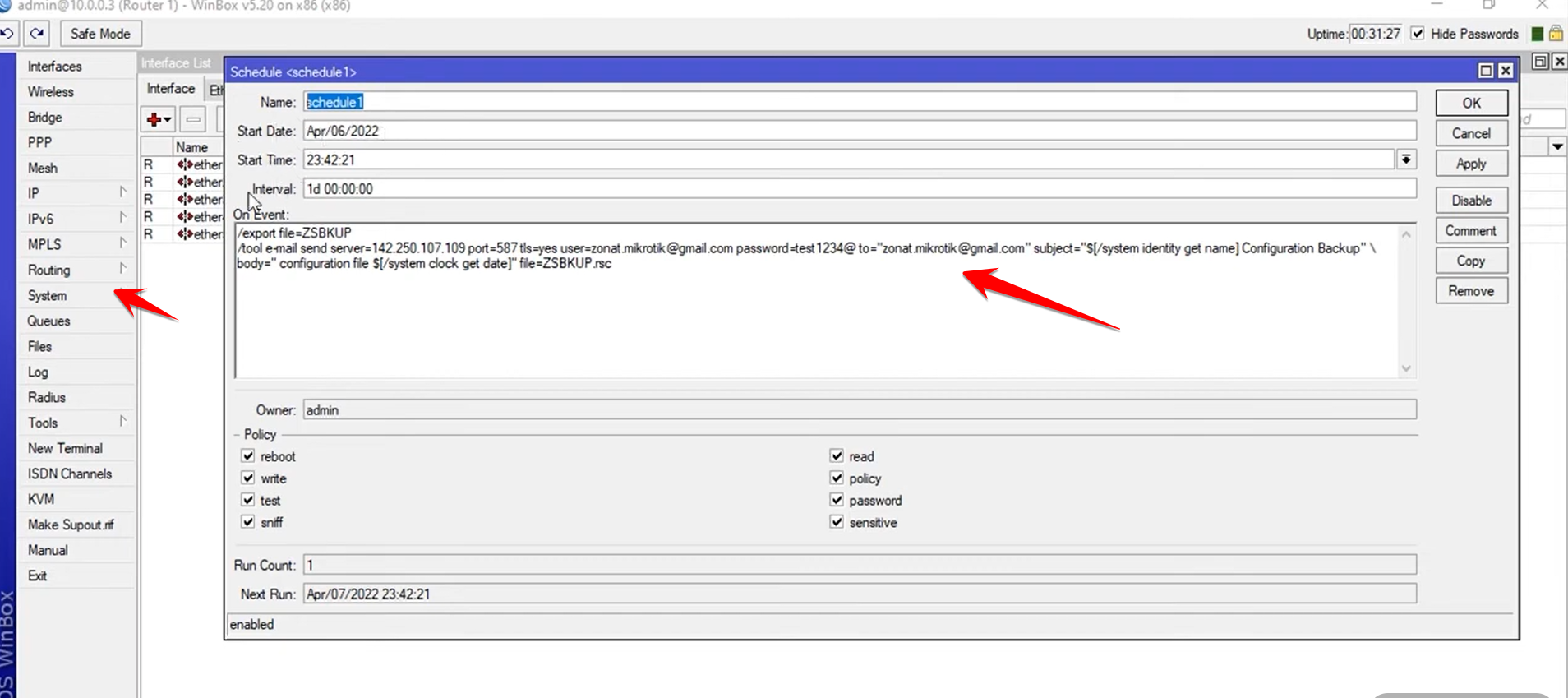
You will create a scheduled task that executes a script to first generate a configuration backup file (.rsc) and then email it.
-
Navigate to System > Scheduler.
-
Click the
+button to create a new entry. -
Set the Name (e.g.,
Daily-Gmail-Backup). -
Configure the scheduling:
-
Start Date: Select today’s date.
-
Start Time: Choose a time when the network is idle (e.g.,
04:00:00). -
Interval: Set to
1d 00:00:00(runs every day).
-
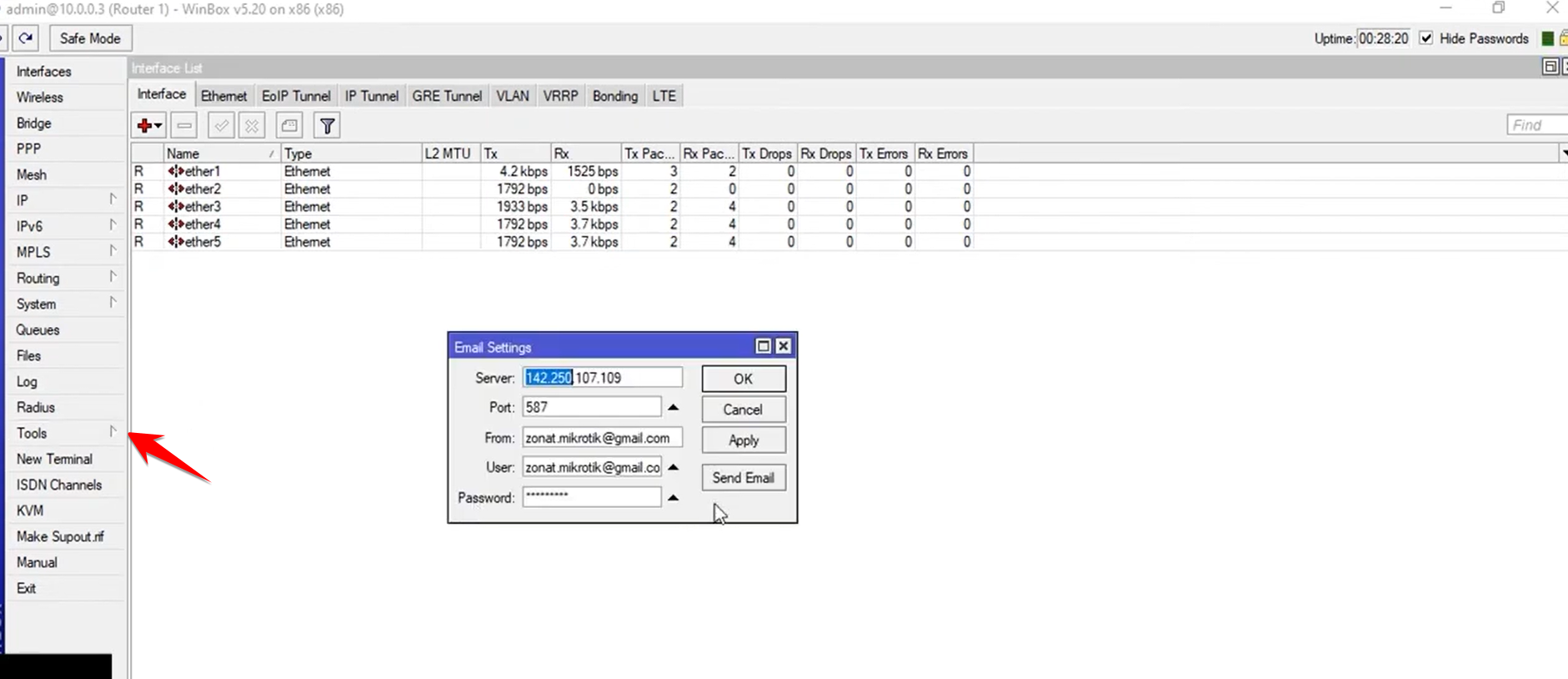
Tip: If you encounter errors, the video suggests disabling Less secure app access in your Google account security settings (or using an App Password if 2-Factor Authentication is enabled).
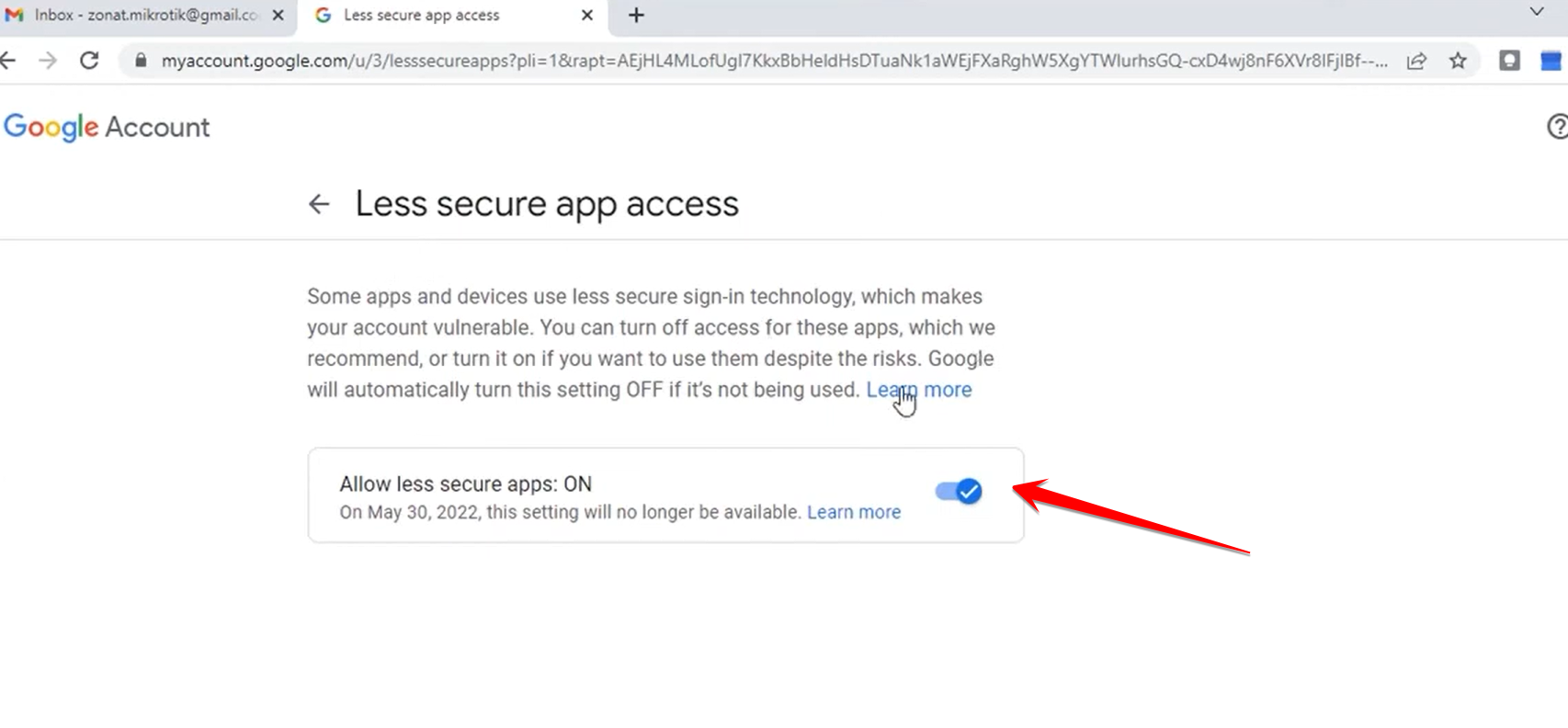
Paste the Script
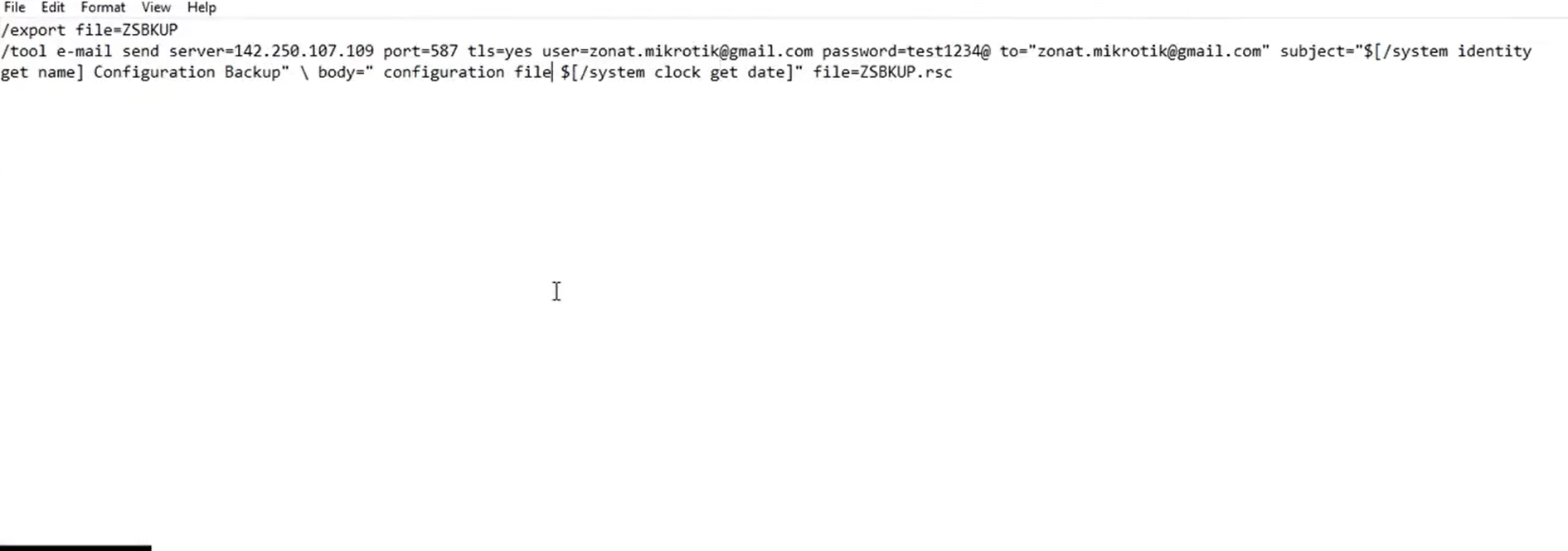
In the On Event field, paste the script below, and update the required details (your email address, and the App Password):Code snippet
Step 2: Verify and Test the Backup
After creating the schedule, you can manually trigger it to ensure it runs correctly and sends the email.
-
Click Apply and OK on the scheduler dialog.
-
If you wait for the scheduled time, the Run Count will increment, indicating it has run.
-
Check your Gmail inbox. You should receive an email with the subject line formatted like: “[Router Name] Configuration Backup.”
The email will contain the .rsc file as an attachment.