
If you run into the error message that says VMware Workstation and Hyper-V are not compatible, it happens when you try to power on a virtual machine. This means Microsoft Hyper-V, Windows native virtualization platform, is enabled right now. It conflicts with VMware Workstation. Both hypervisors fight over access to the core CPU virtualization extensions. You need to disable Hyper-V so you can use VMware.
Step 01:
You can spot the conflict easily. When you attempt to start a VM in VMware Workstation while Hyper-V runs, a clear error message shows up to indicate the incompatibility.The fix is pretty straightforward. You just turn off the Windows feature that causes the conflict.

Step 02:
The quickest way to resolve this conflict is by disabling the Hyper-V feature through the Control Panel. First, open the Control Panel. Go to the Windows Control Panel. Then, access Programs and Features. Navigate to Programs, or Programs and Features. Next, turn Windows features on or off. Click on the option to turn Windows features on or off.

Now, disable Hyper-V. In the list of Windows Features, find the Hyper-V entry. If it is checked, uncheck it to disable the feature.
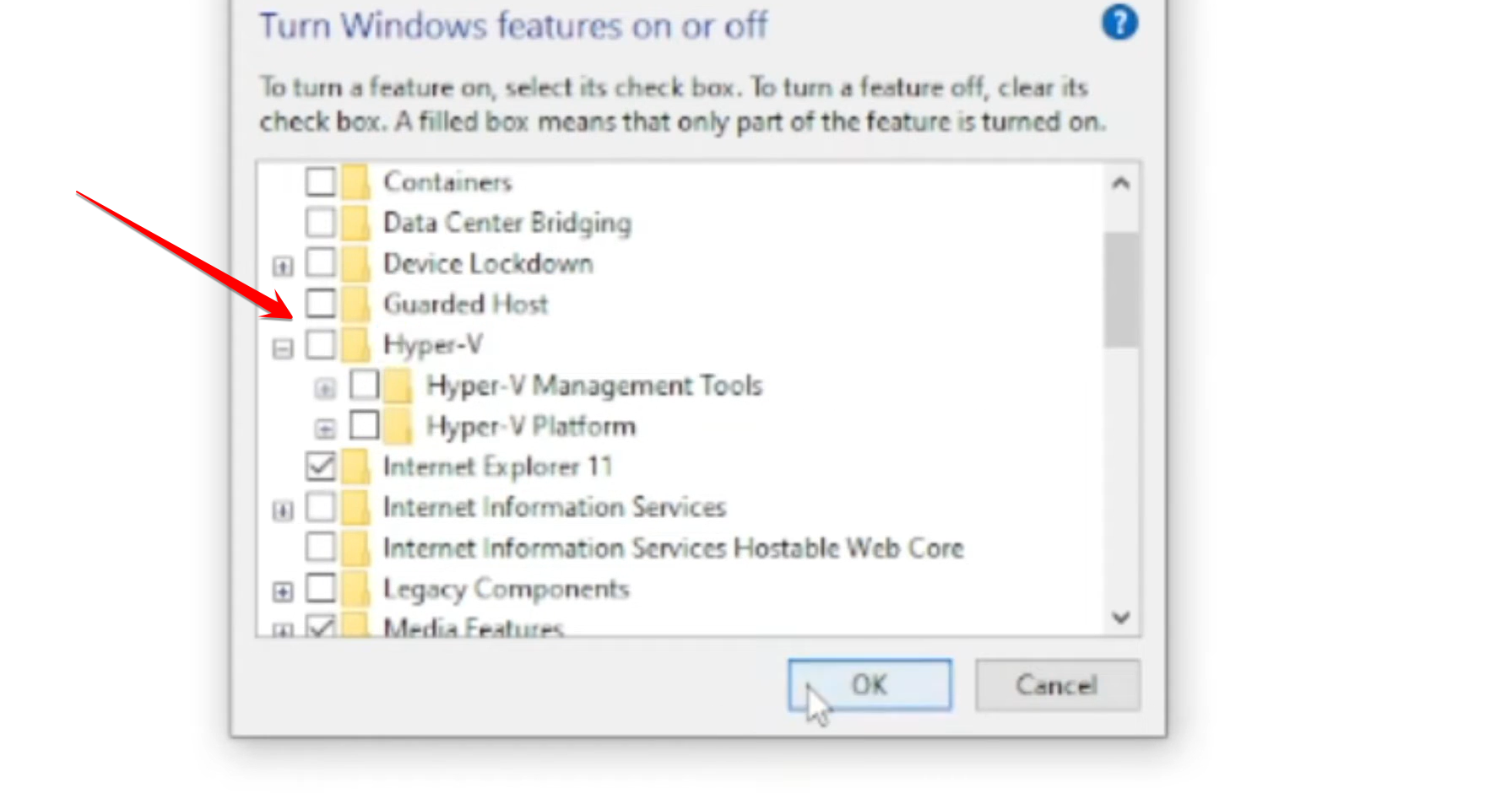
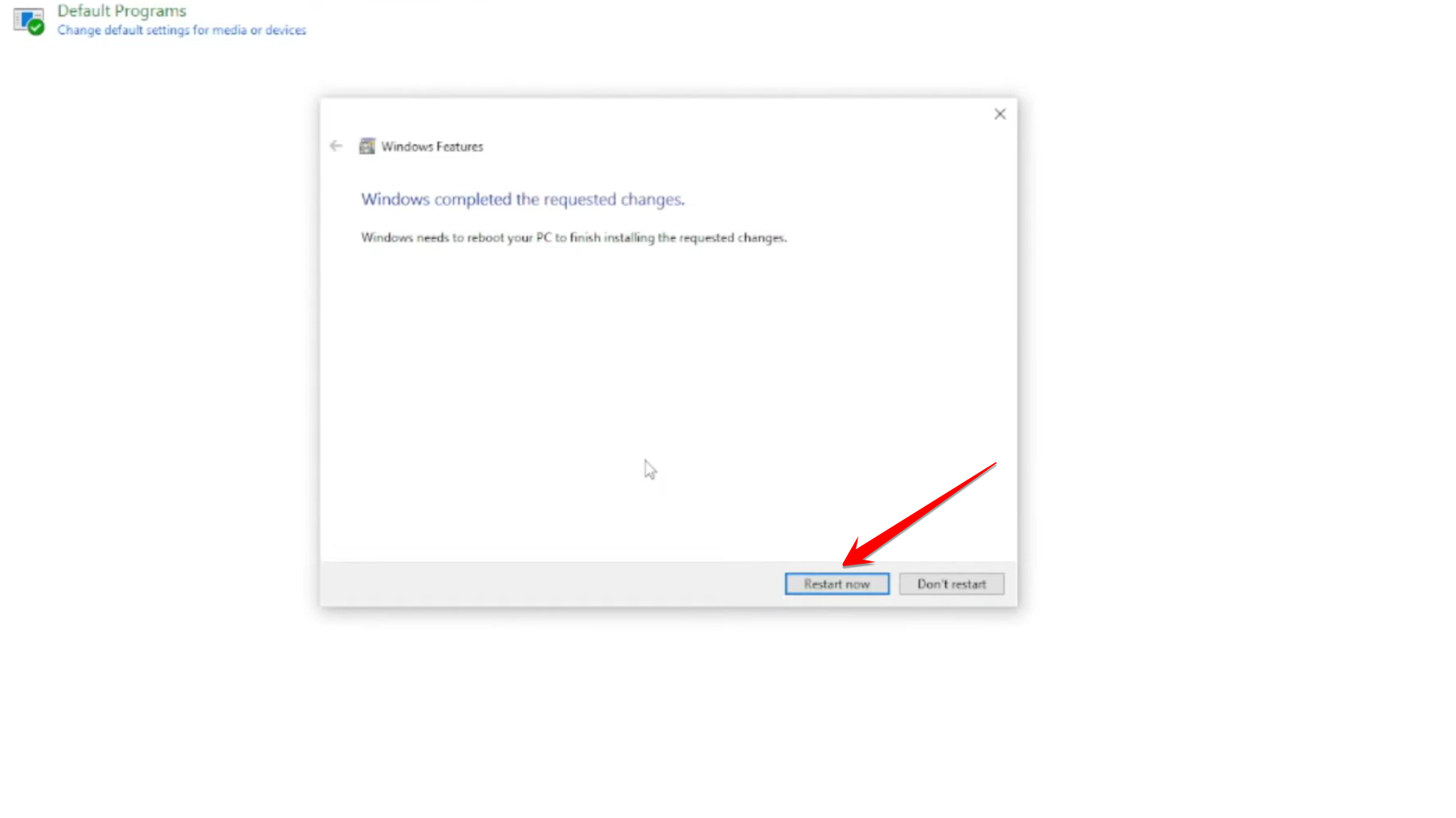
Finally, restart the system. Click OK. Windows will prompt you to restart your computer to apply the changes. This step is mandatory for the change to take effect.
Step 03:
After your computer restarts, the conflict should be resolved. You can proceed with your virtualization work in VMware. Open VMware Workstation. Start the VMware application. Then, power on the VM. Attempt to power on the virtual machine that previously produced the error. For confirmation, the VM should now power on without the compatibility error.