
If you’re working with MikroTik routers, exporting your configuration or script code is one of the most useful things you can do for backup, migration, or sharing configurations with others.
In this guide, you’ll learn step-by-step how to export a MikroTik script using WinBox
Step 1: Open WinBox and Access the Terminal
Once you’re logged into your MikroTik router via WinBox, look at the left sidebar and click on:
Tools → New Terminal
This will open a command terminal inside WinBox.

Step 2: Run the Export Command
Inside the terminal, type the following command:
This command will export all your current configurations into a file named myfile1.rsc.
You can replace myfile1 with any name you prefer.

Step 3: Locate the Exported File
Now go back to the left panel and click on Files.
You’ll see your newly exported file (e.g., myfile1.rsc) listed there.
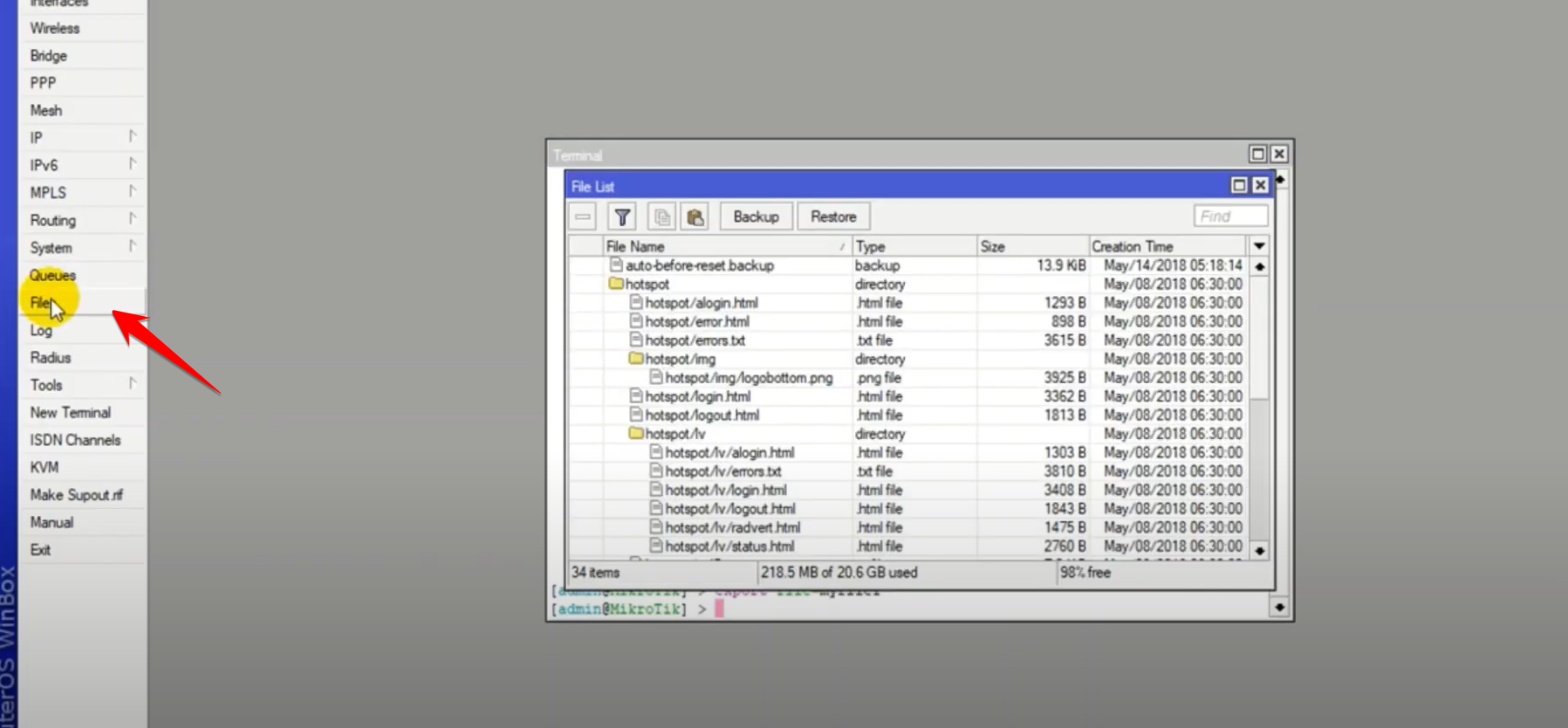
You can now drag and drop this file to your computer desktop from WinBox — it will automatically download.