
MikroTik routers come with several management services enabled by default. To significantly improve security, you should disable any services you don’t use and change the port numbers for the ones you keep.
1. Disable Unused IP Services
Disabling unused services reduces the “attack surface” of your router, making it harder for unauthorized users to gain access.
-
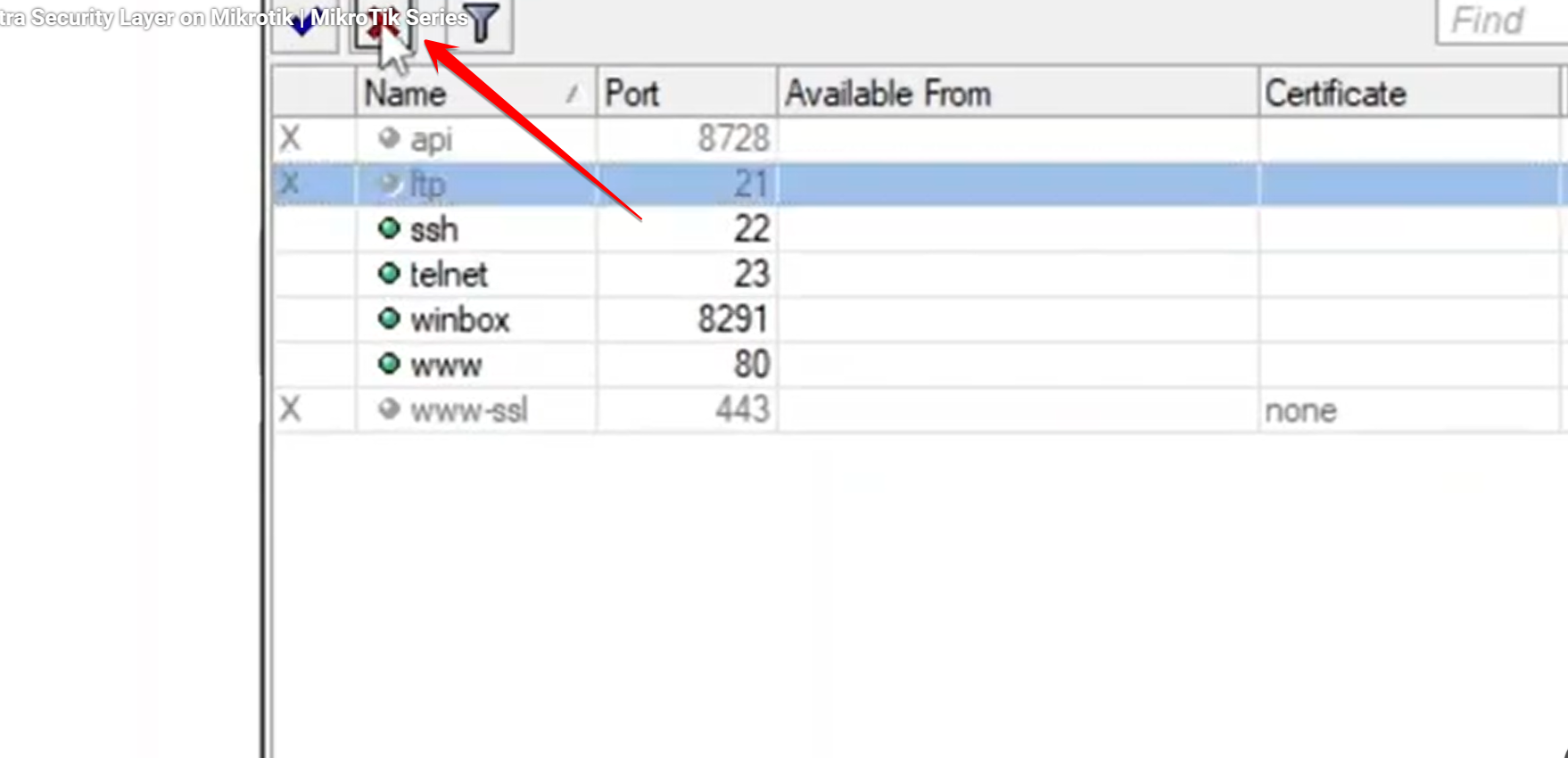
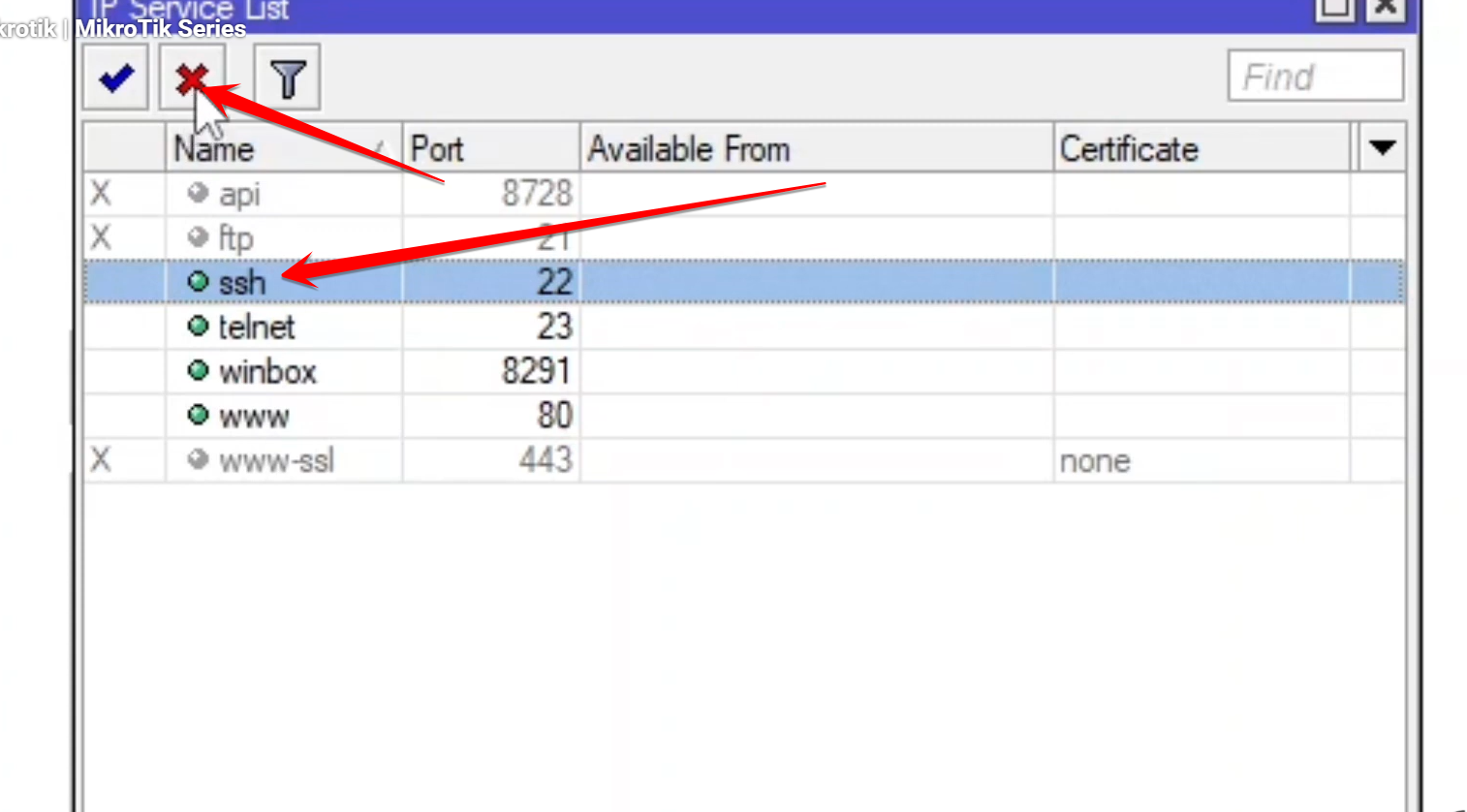
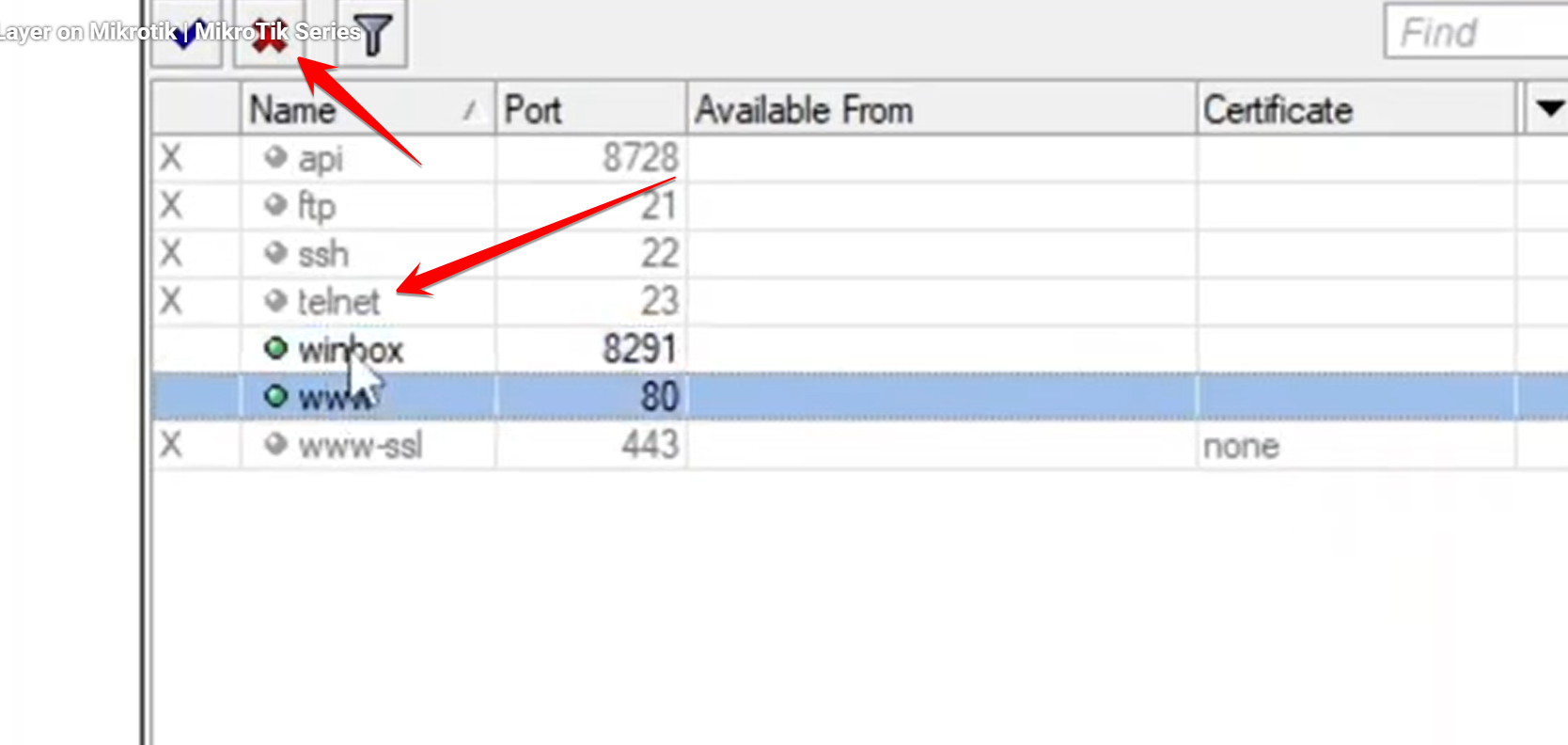
In WinBox, navigate to IP > Services.
-
Disable the following services if you don’t use them:
-
FTP (Port 21): Used for copying files. If you use WinBox/SFTP, disable this.
-
SSH (Port 22): Used for command-line access and SFTP. If you only use WinBox, you can disable this.
-
Telnet (Port 23): An unencrypted command-line access protocol. Always disable this.
2. Change Default Port Numbers
For services you must keep enabled (like WinBox and WebFig), change their default ports to random, non-standard high-numbered ports (e.g., above 10000). This defeats simple port scanning attempts.
-
In IP > Services, locate the remaining services:
winboxandwww(WebFig). -
Change the Port for WinBox:
-
Default port is
8291. Change it to something unique (e.g.,9999).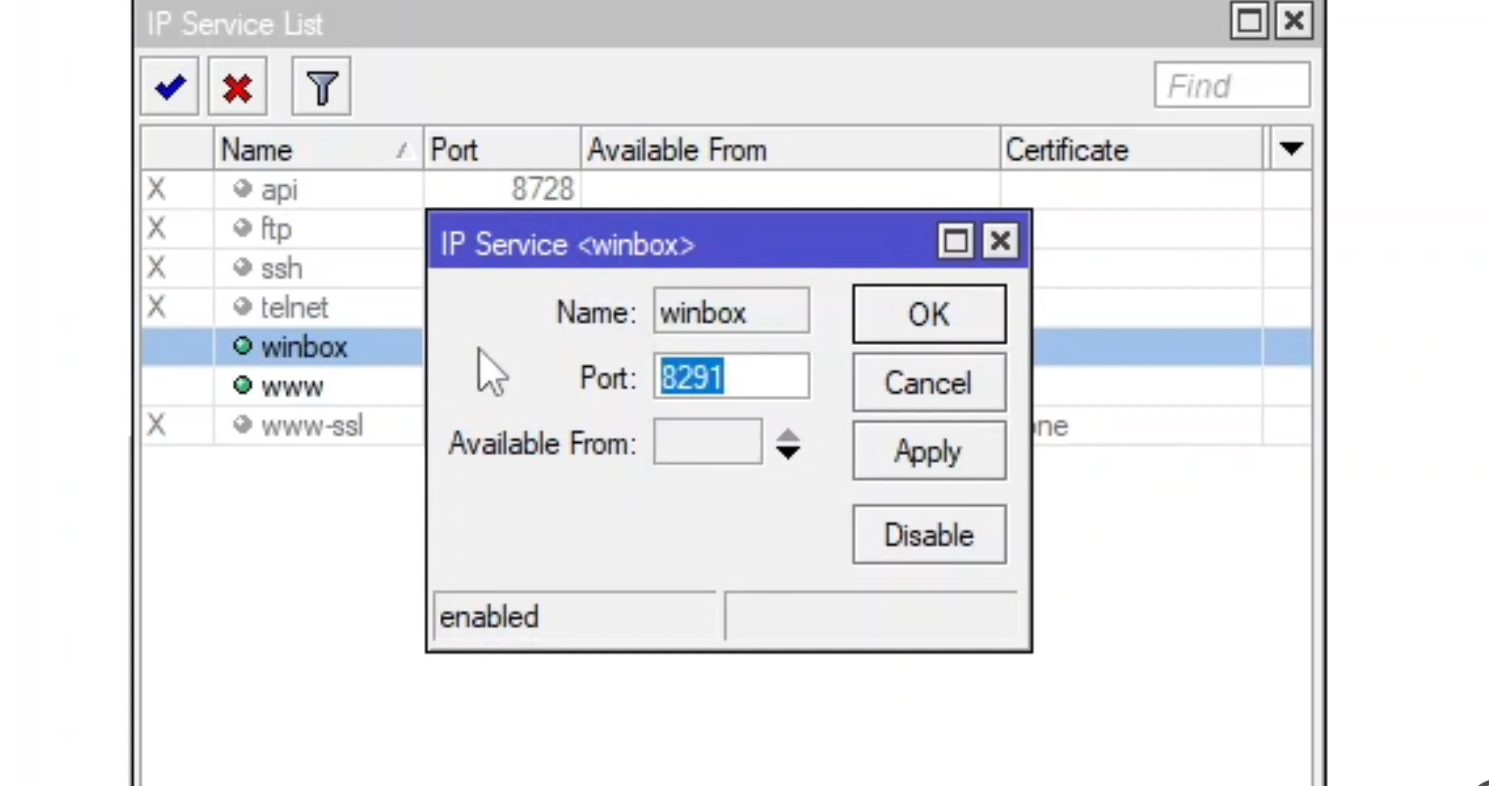
-
-
Change the Port for WebFig (
www):-
Default port is
80. Change it to something unique (e.g.,9998).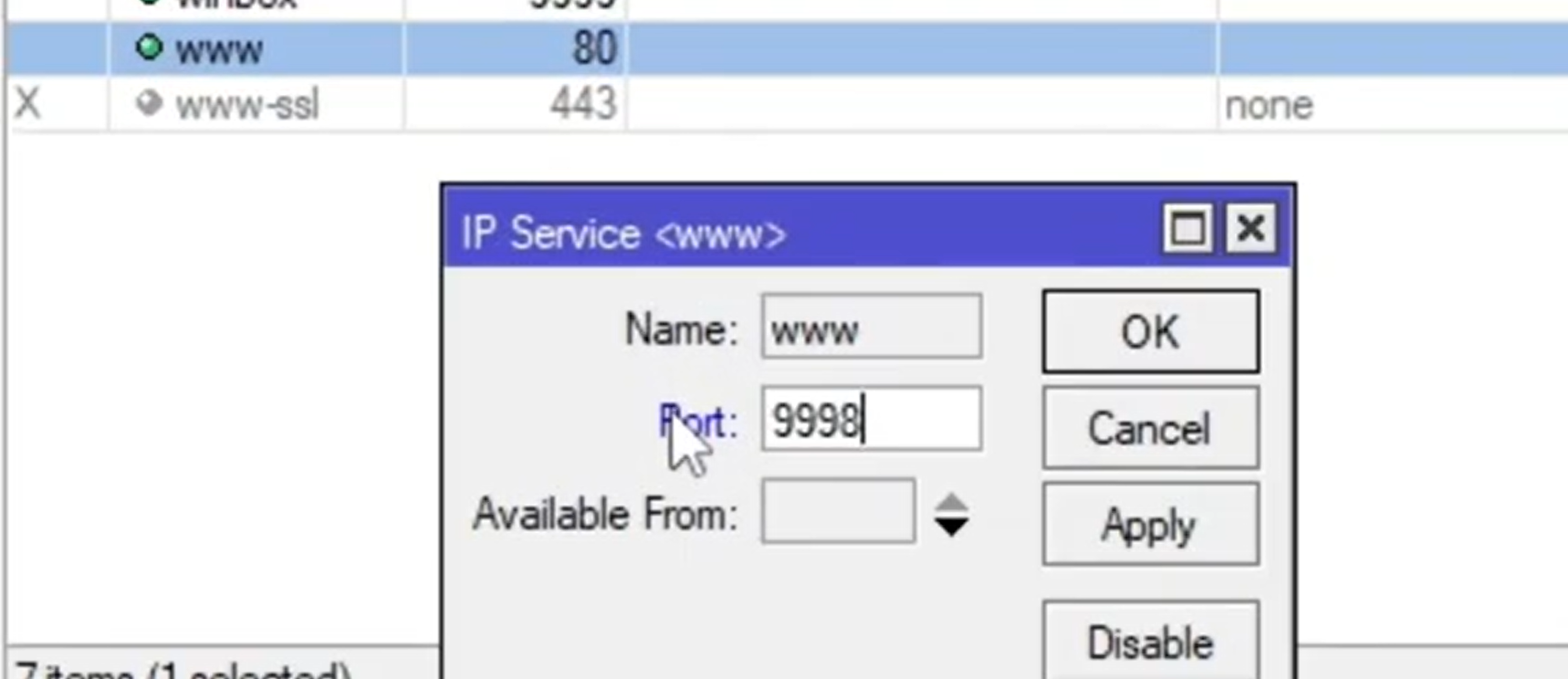
-
Caution: After changing the WinBox port, you must specify the new port when connecting in WinBox using the format:
[IP Address]:[New Port](e.g.,192.168.1.1:9999).3. Enforce Strong User Passwords
The most critical step is ensuring all user accounts have strong passwords to prevent brute-force attacks.
-
Navigate to System > Users.
-
Double-click the
adminuser (or your primary management user). -
Set a strong password that includes:
-
A minimum of 10-12 characters.
-
A mix of uppercase letters, lowercase letters, numbers, and special characters (e.g.,
$, %, #, @).
-
Extreme Security: For maximum security, you can specify the Allowed From IP address range for management services in the IP > Services menu, restricting access to only your management computer’s IP address.
-
-