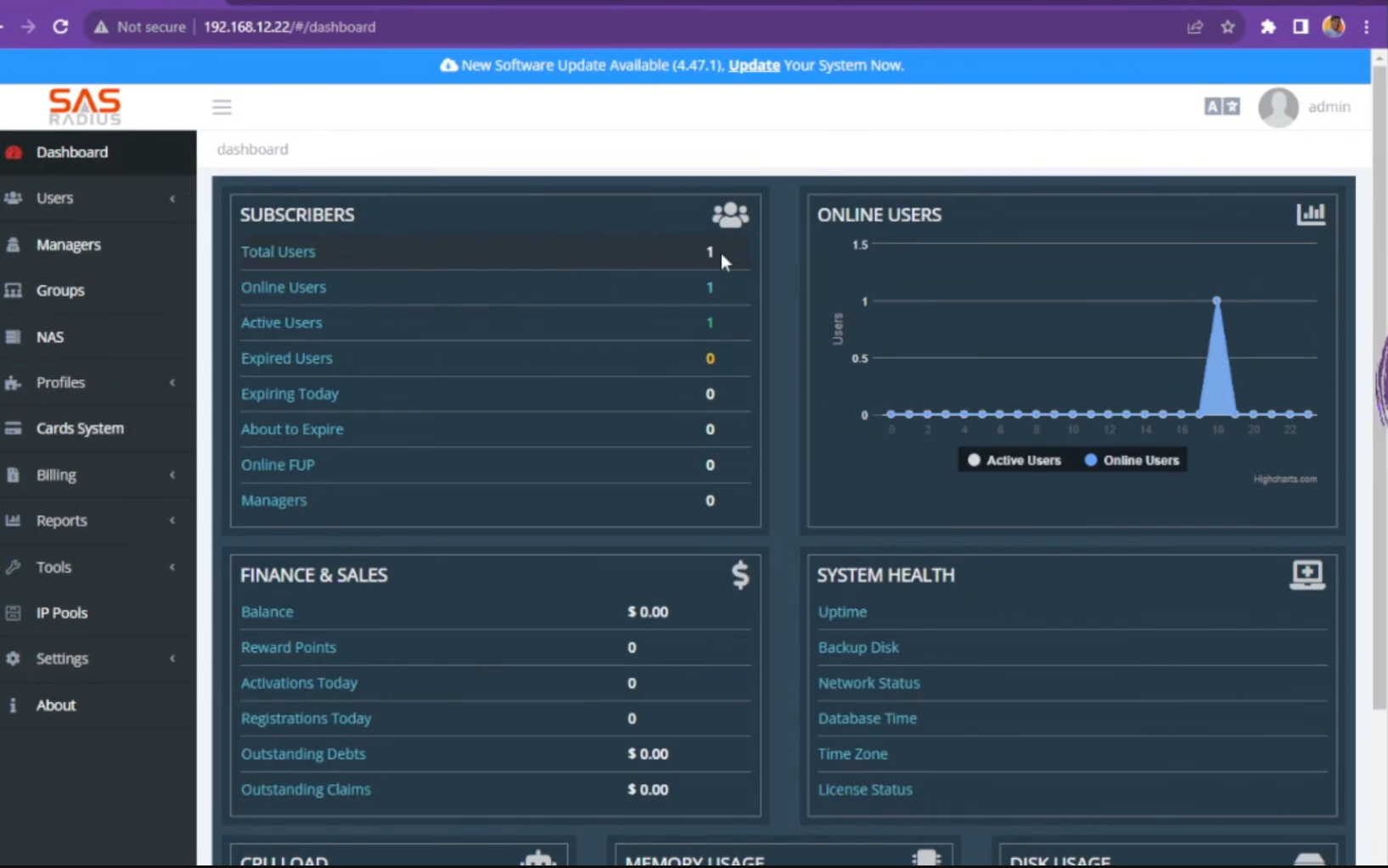
Step 01: SAS4 Radius Manager Configuration
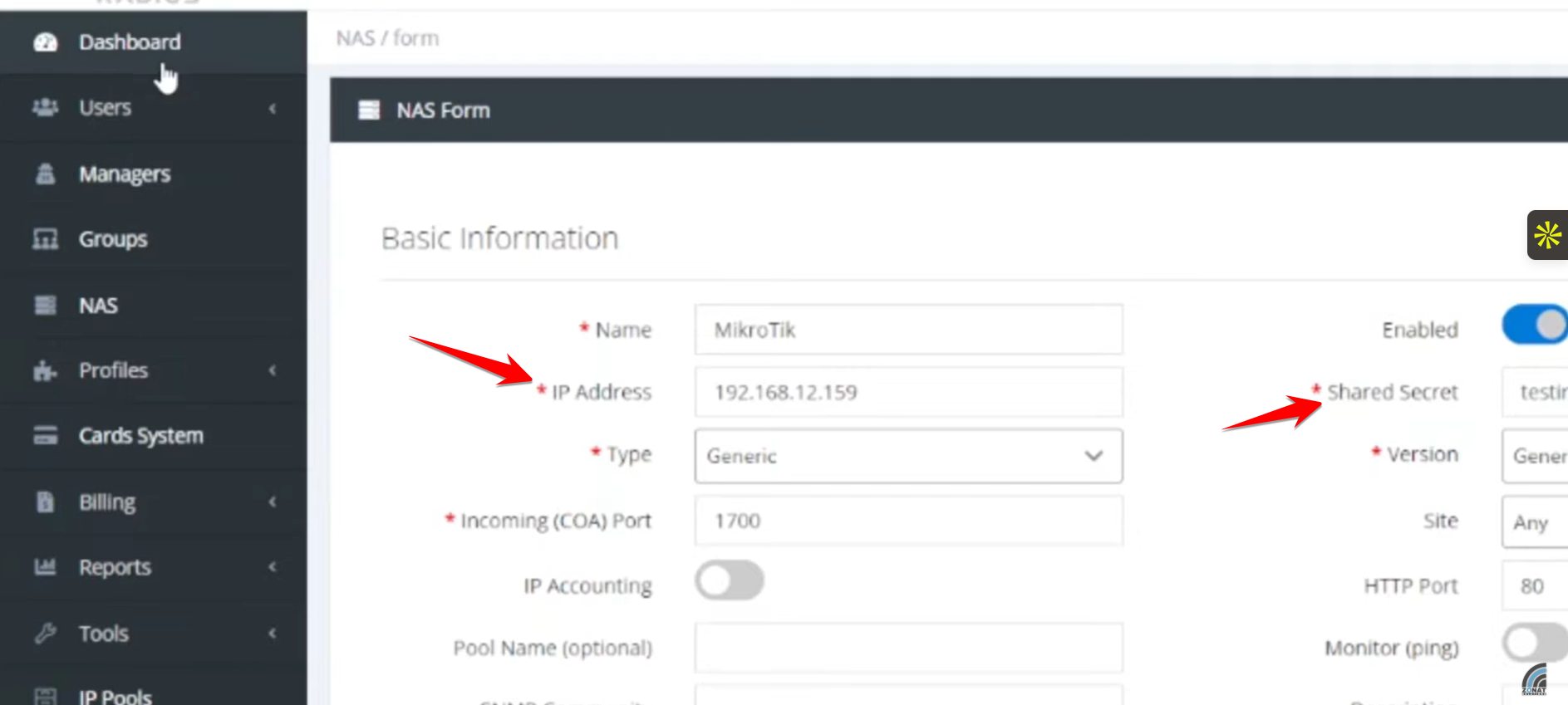
- Create or edit a service profile. In this video, the narrator shows that you need to input the MikroTik’s IP address and a Shared Secret to establish communication.
- Create a user account. The narrator notes a security feature where users can be edited or transferred, but not easily deleted.
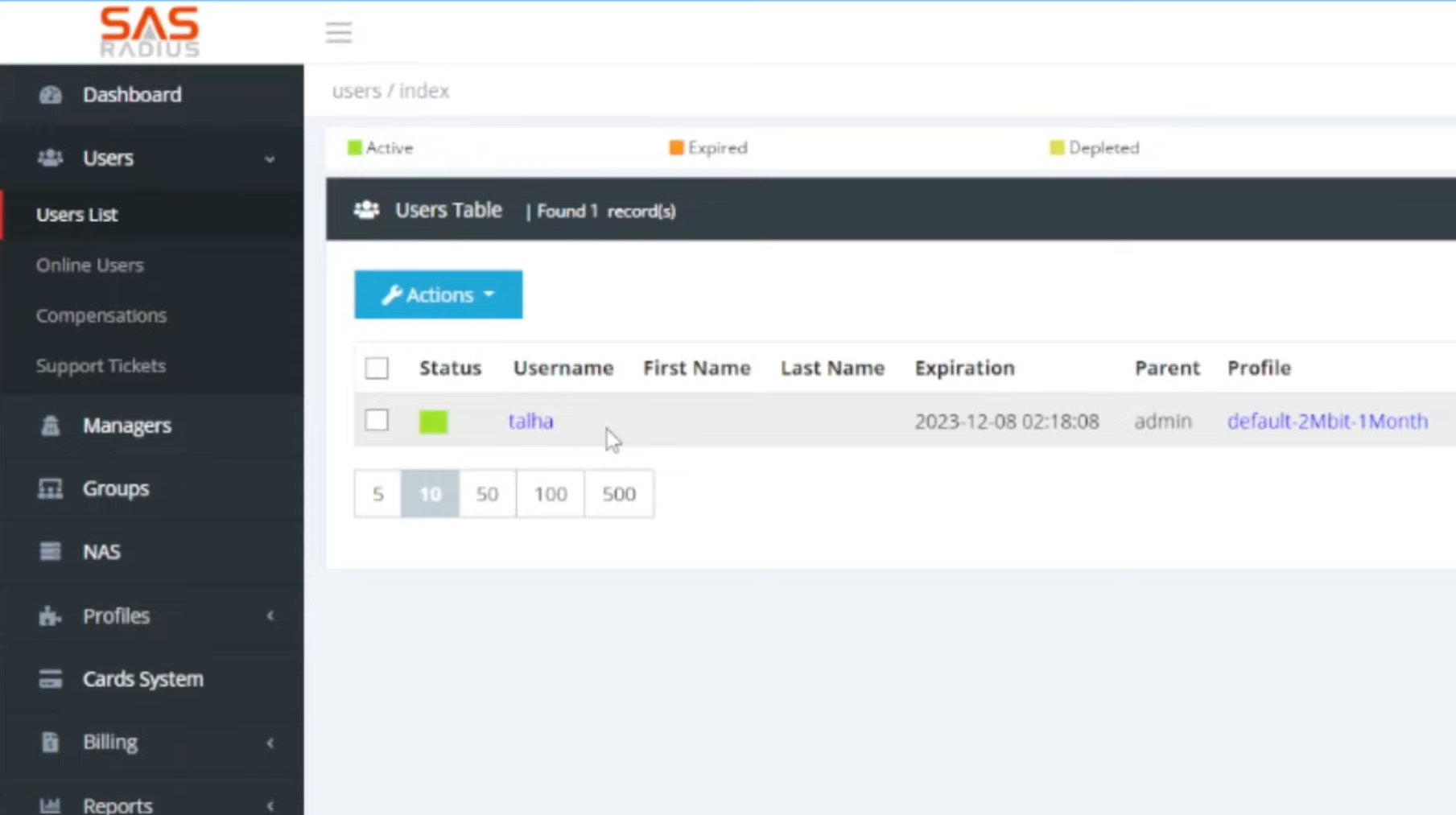
- New users may start in an “expired” state (orange). You must select the user and click Activate, which typically involves adding credits based on the profile’s price
Step 02: MikroTik Router Configuration
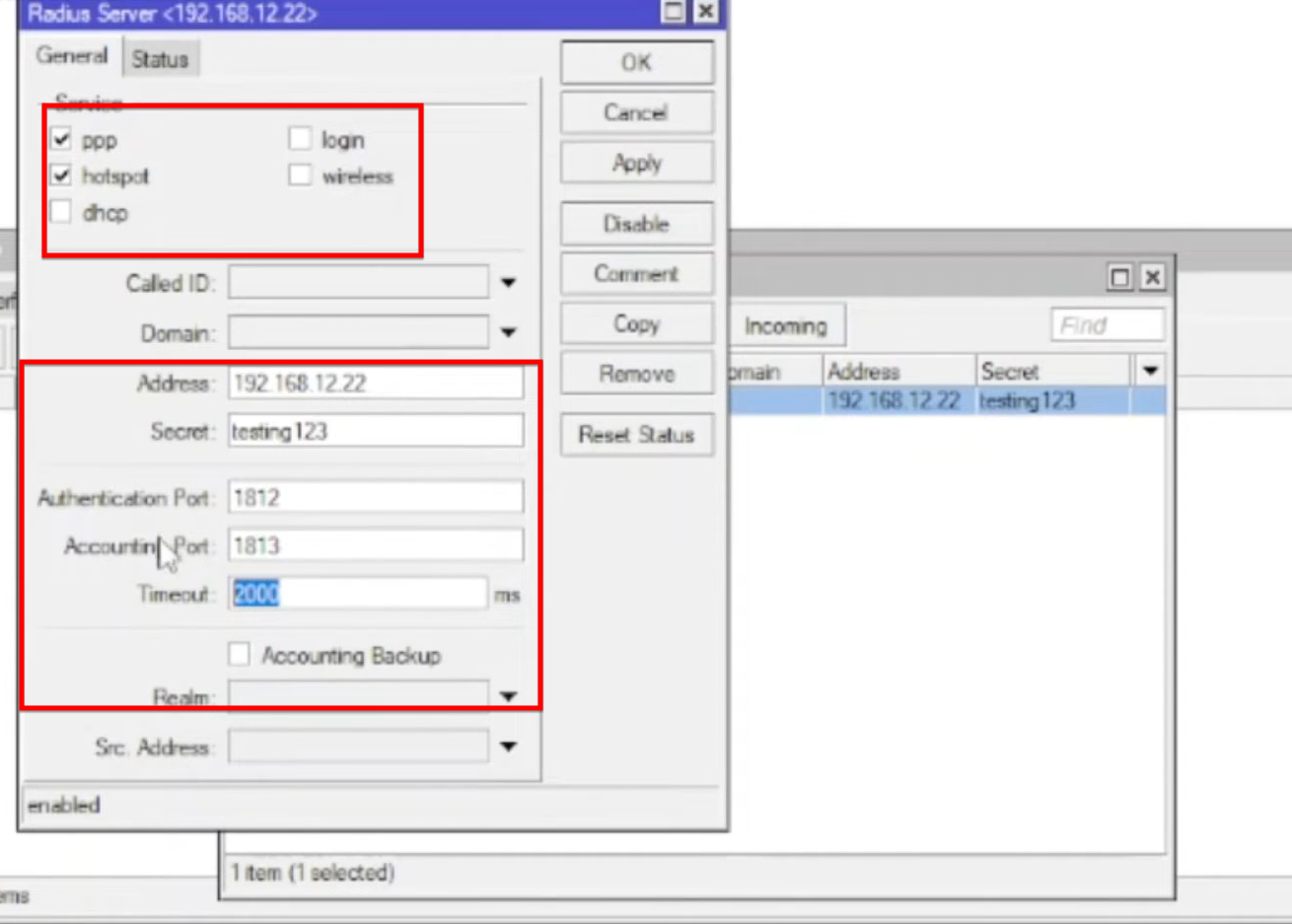
- Go to the Radius menu and add a new server. Enable it for PPP and Hotspot services. Enter the IP address of the SAS4 Radius Manager and the same Shared Secret used in the SAS4 portal.
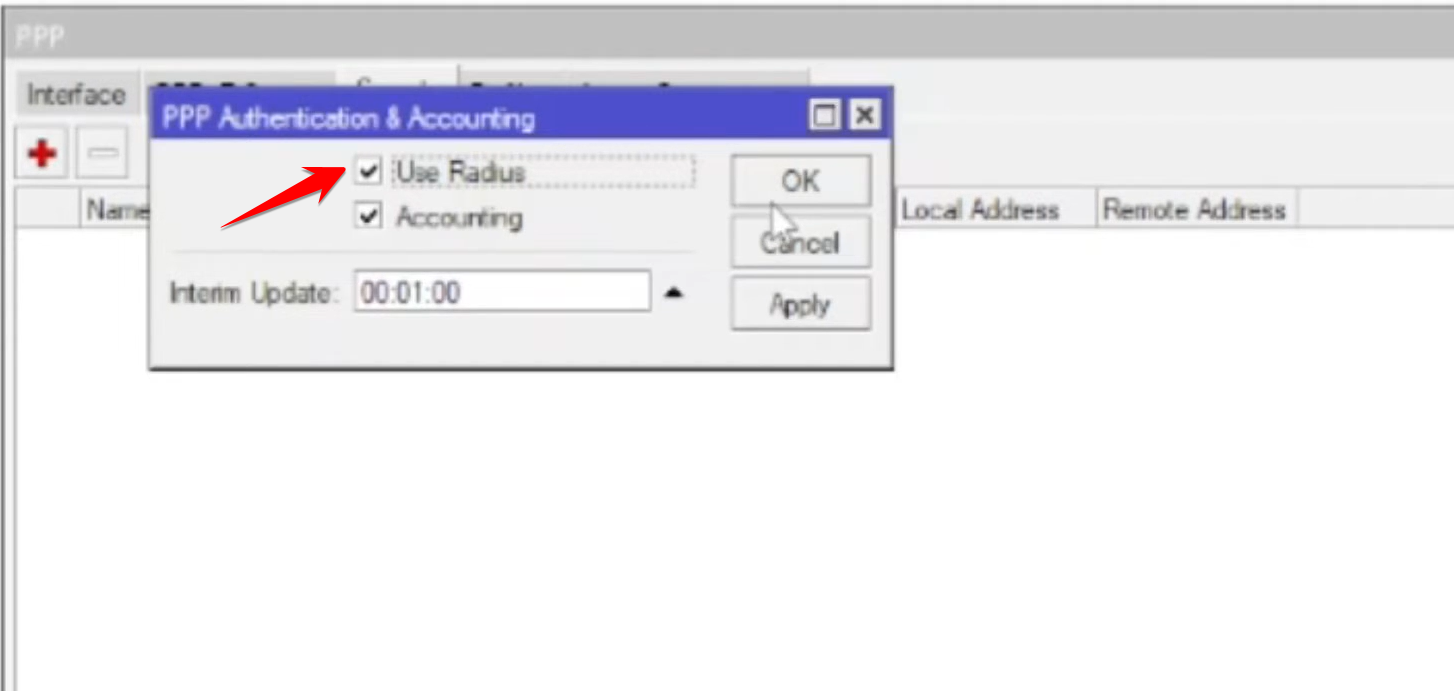
- Set up a PPPoE server on your LAN interface. Ensure the option to use Radius for authentication is enabled.
Step 03:Testing and Monitoring
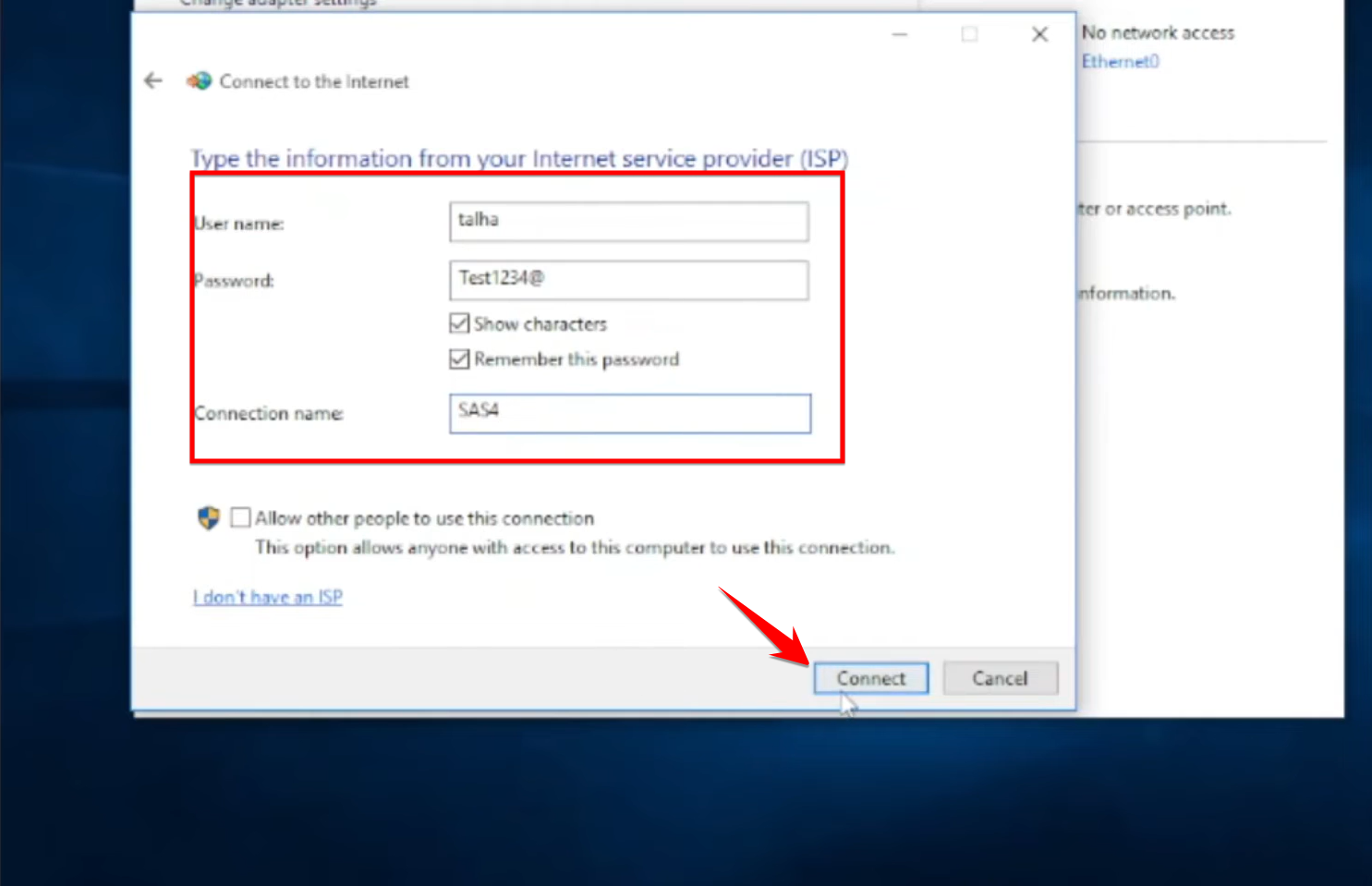
- The video demonstrates creating a standard PPPoE dial-up connection on a Windows PC using the credentials created in SAS4. The connection is established successfully and very quickly.
- The SAS4 dashboard provides real-time monitoring, showing online users, system resource usage (CPU, memory, disk), and cumulative traffic data.