Windows Disk Management often fails when you try to extend a partition but the required unallocated space is separated by other partitions (like recovery or system partitions). The AOMEI Partition Assistant tool provides flexible solutions, allowing you to move partitions or directly merge unallocated space, even when it’s not contiguous.
STEP: 01
Overcoming those non-contiguous space limits takes some effort in Windows. The big issue here shows up when unallocated space gets separated from the target partition, like the E drive in that video. Other partitions sit in between and block the way. Windows Disk Management just cannot jump over those middle partitions to pull in the space.
Moving the intervening partition to clear the path. First, spot the barriers. Those are the partitions between your target drive, say E, and the unallocated space.
Then, move the partition. Right-click the first one in the way and pick the Move Partition option around.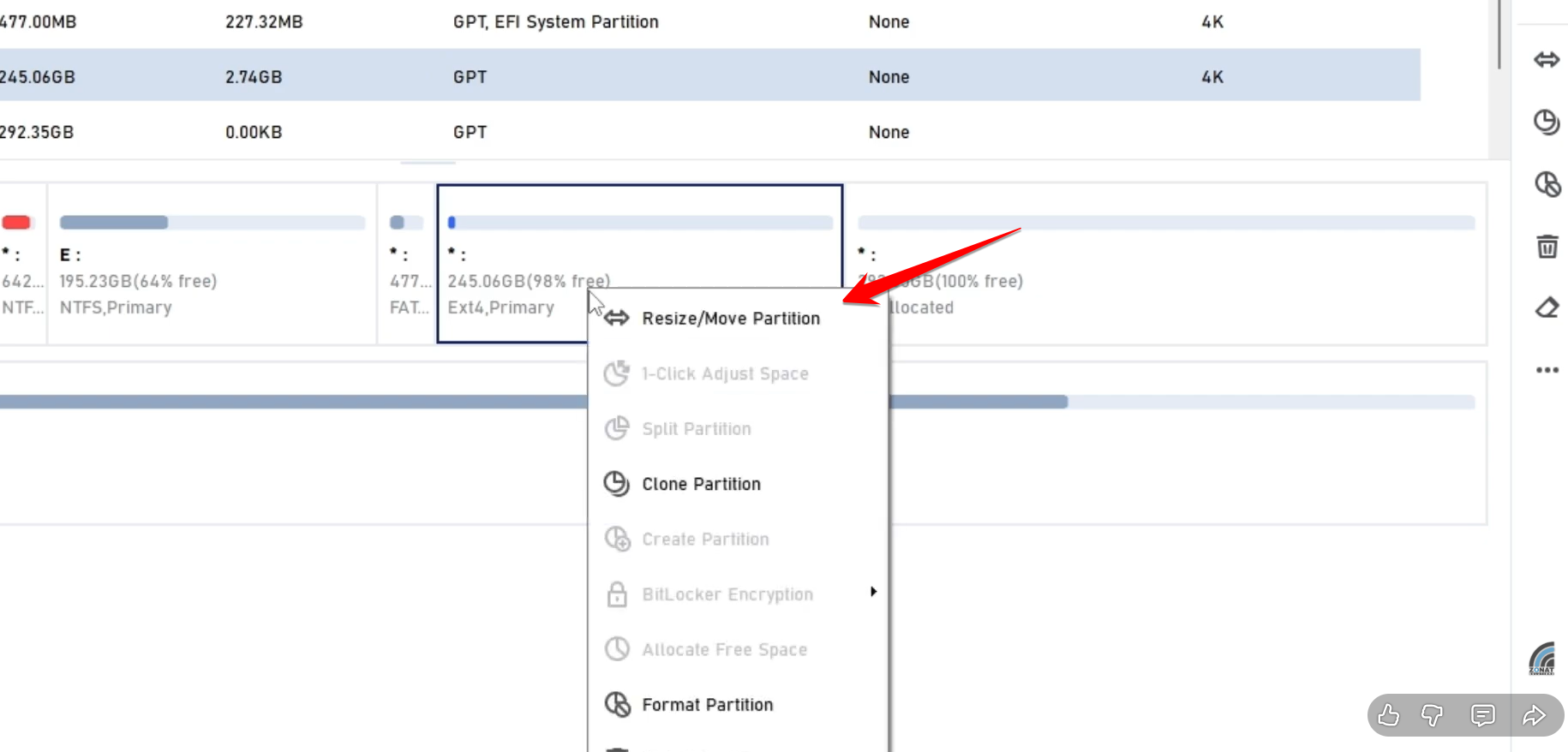
Drag it over and apply the change. Pull the partition to the right so it gets out of the way. Do this for each one until the unallocated space lines up right next to the target partition on E.
Now resize and merge them. Right-click the target partition on E and choose Resize or Move Partition. Drag the edge to take in that adjacent unallocated space.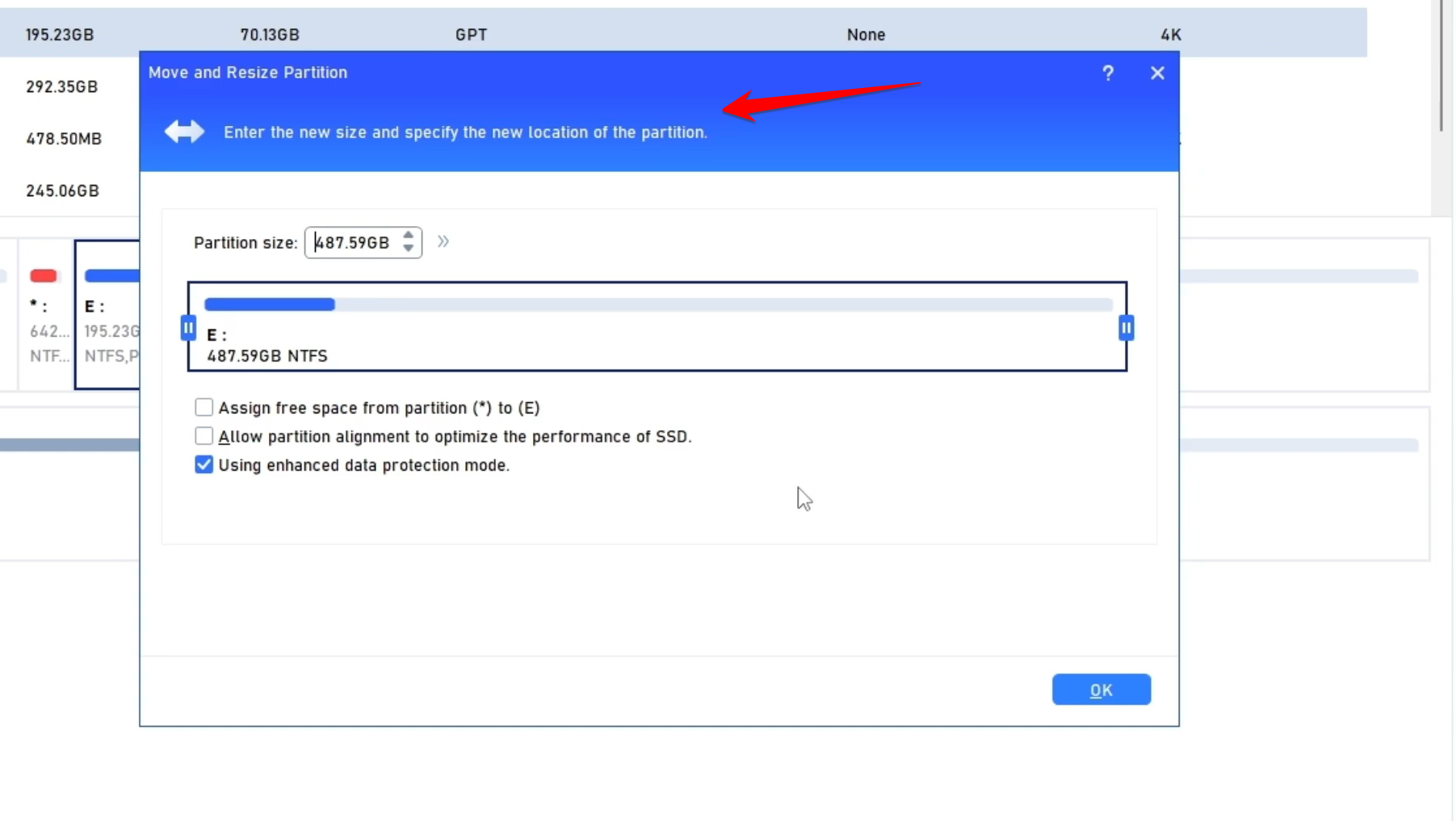
Lets you merge partitions directly without all that moving. AOMEI makes this simpler by skipping the relocation step altogether. It uses a merge feature built right in.
Start by selecting the target. Right-click the partition on E.
Then pick Merge Partition from the Advanced menu.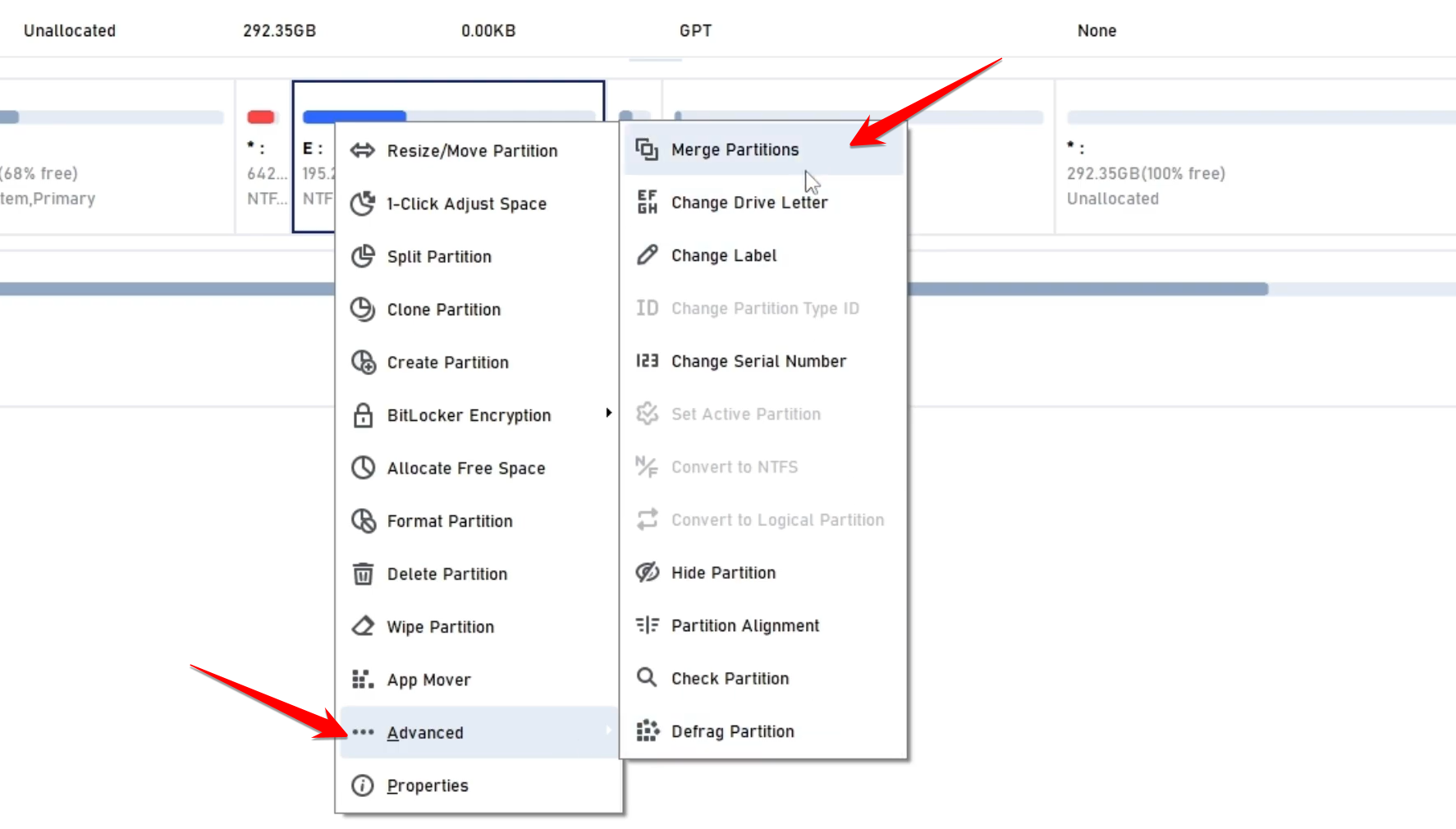
A dialog box pops open next. Check the box for the non-contiguous unallocated space you want to add in.
Hit OK and then click the Apply button on the toolbar to make it all happen.
Advanced features in AOMEI Partition Assistant go way beyond just merging that tricky space. The tool packs in a bunch of options for better disk handling.
You can split or create partitions pretty easily. Right-click an existing one and select Create Partition to make a new one from its free space.
Step:02
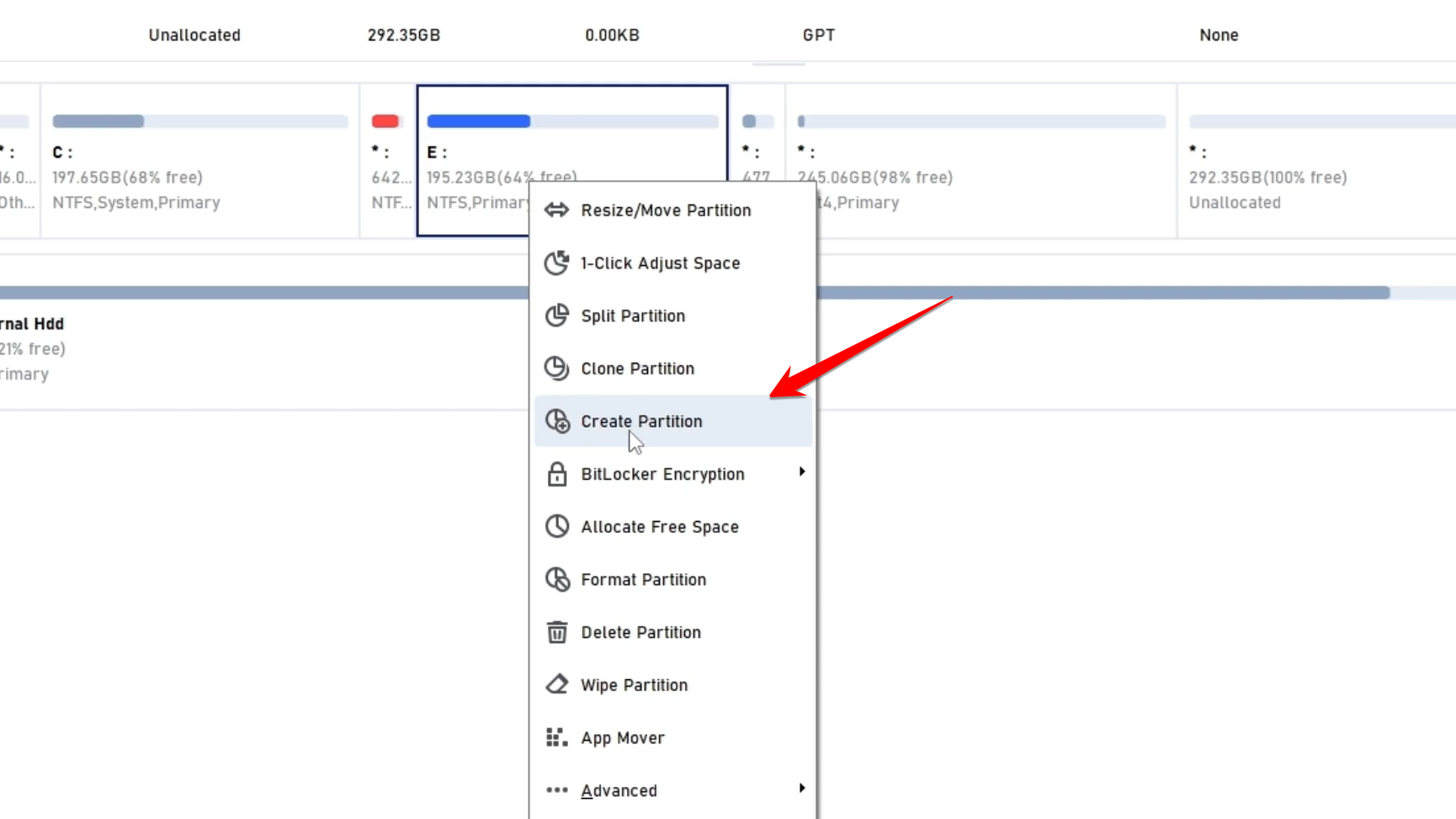
Formatting choices come quick too. Switch the file system on a partition, say from NTFS to ExFAT or even Ext4 for Linux setups.
The Check Partition tool scans for issues like bad sectors or file system glitches. It fixes them when found.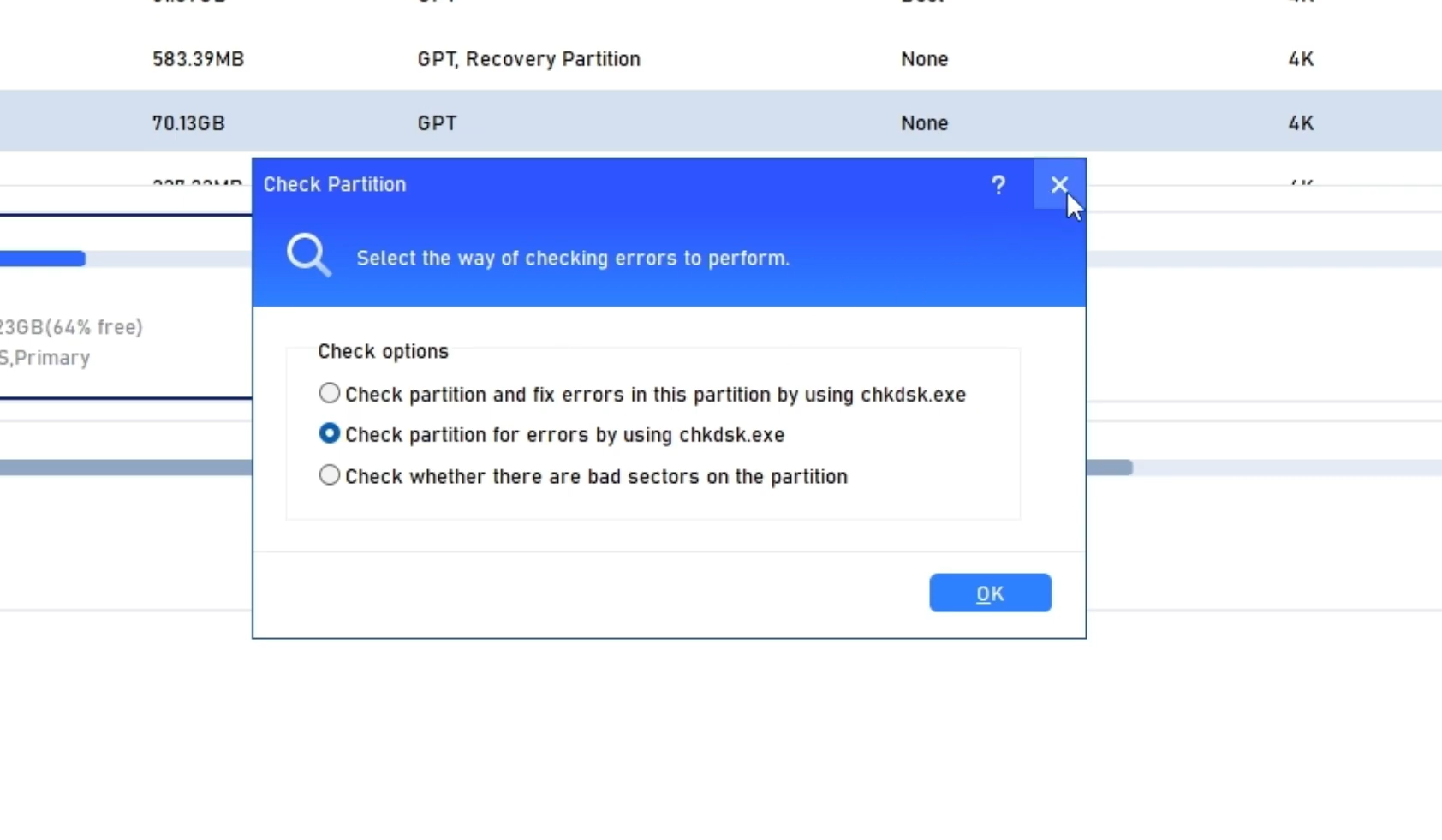
Defragmentation helps mechanical drives, those old HDDs. The built-in analyzer and defragger boost performance there. It smartly warns against doing this on Solid State Drives, or SSDs.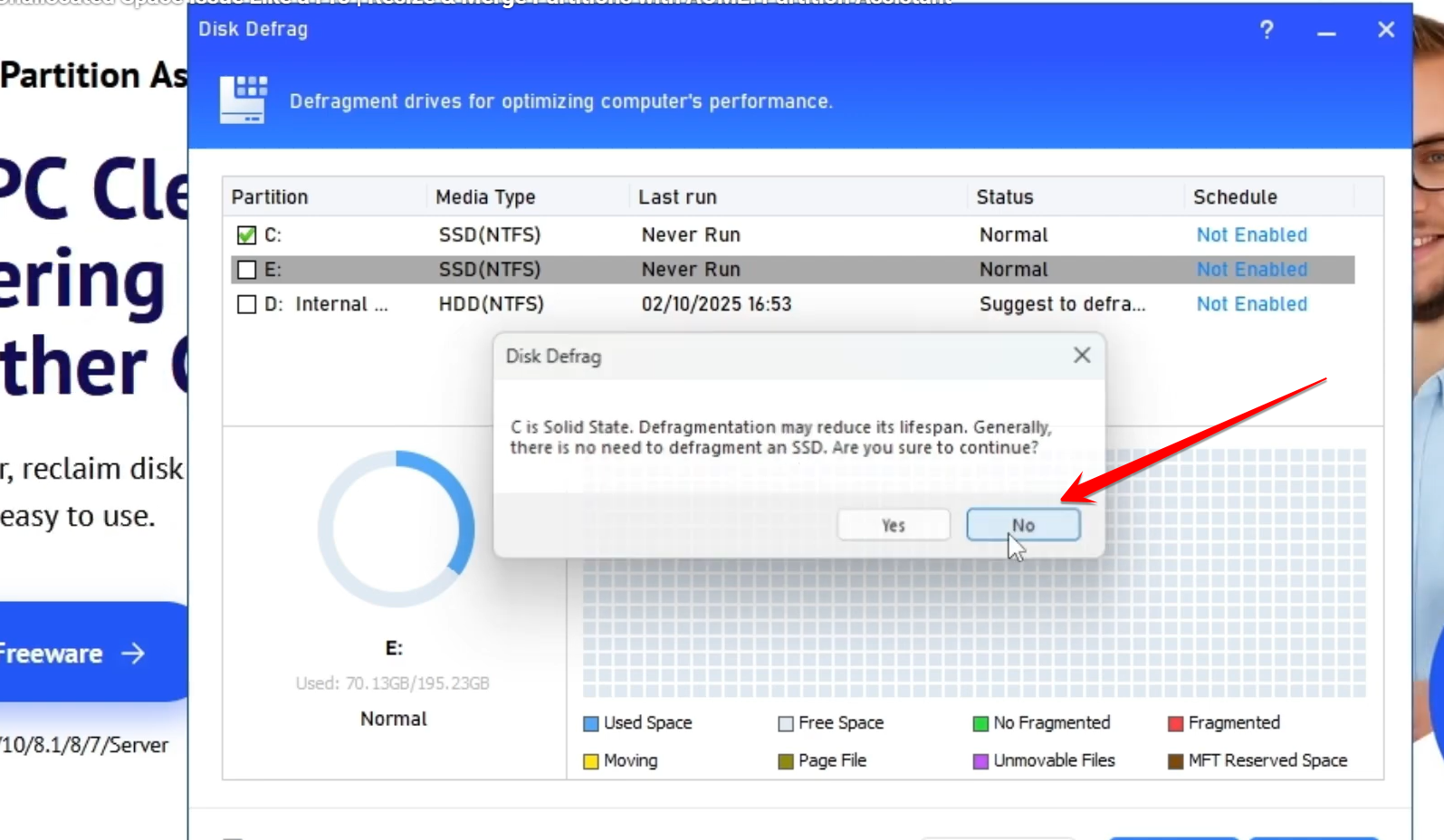
AOMEI sets up a full wizard-based interface for disk management. It covers every angle and turns tough jobs into something simple and dependable.