People often look for ways to handle disk stuff without too much hassle. AOMEI Partition Assistant stands out as this solid tool packed with features. It handles things like cloning disks, resizing them, and switching disk types pretty smoothly. In this post, we dive into what it does best. We cover the easy one-click cloning for disks and some key ways to manage partitions.
Step-01
Disk cloning comes in handy a lot. You might need it when you swap to a bigger drive or shift your operating system around. AOMEI simplifies that whole thing compared to messing with command lines. It feels way less intimidating.
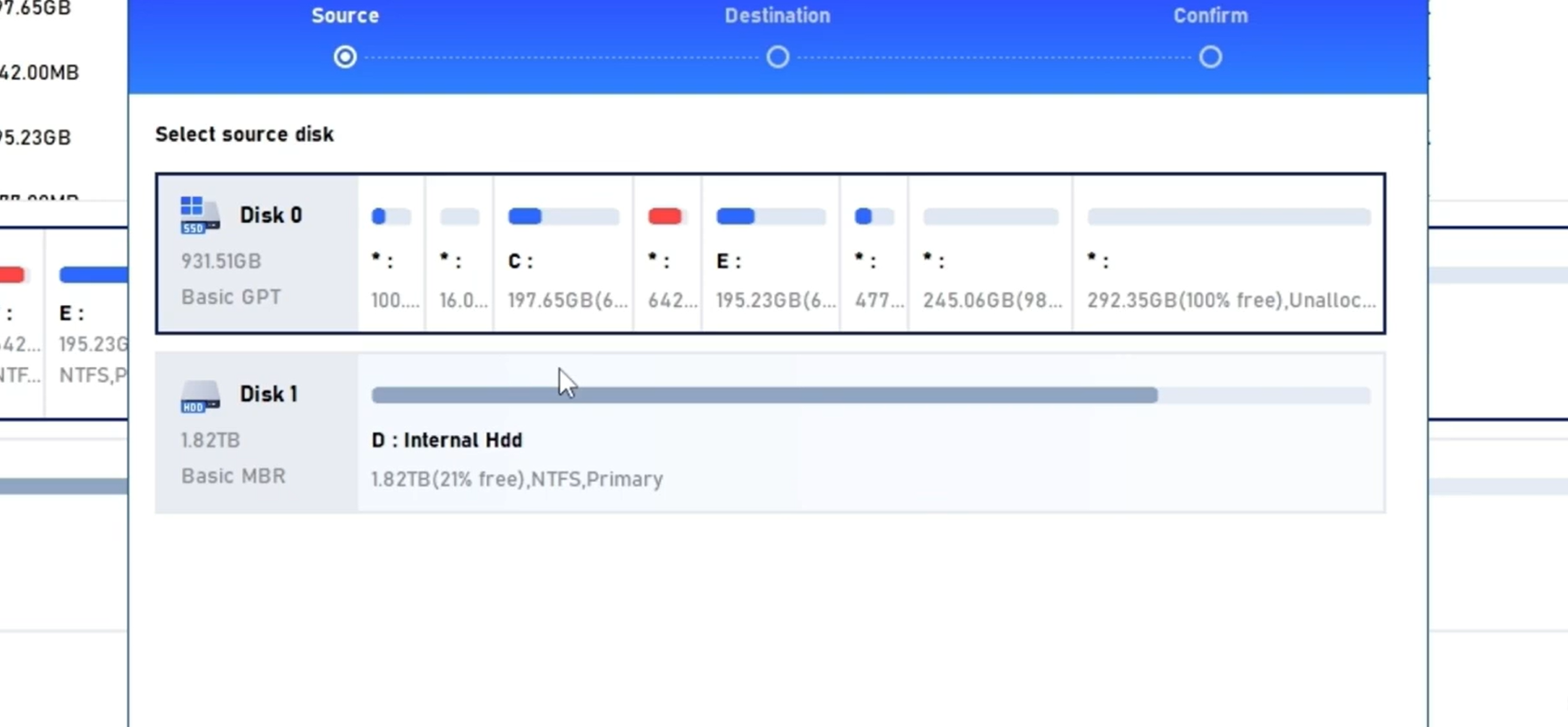
To get started with cloning, just right-click the disk you want to copy from, like Disk 0. Pick the Clone Disk choice from the menu. Then choose where it goes, say Disk 1, and hit confirm. The wizard guides you through every step. It keeps things simple and direct.

Folks like this approach over something like Clonezilla. That one involves a bunch of steps that can trip you up. Miss one, and you risk losing data or running into errors.
Step-02
When it comes to partitioning and converting drives, AOMEI offers fast ways to set things up. You can handle new drives or switch formats without much effort.
Take a fresh disk with no allocations. The Quick Partition tool lets you set up several sections at once. Think System for the OS, Software for programs, and Documents for files. It assigns labels and sizes automatically in one go.

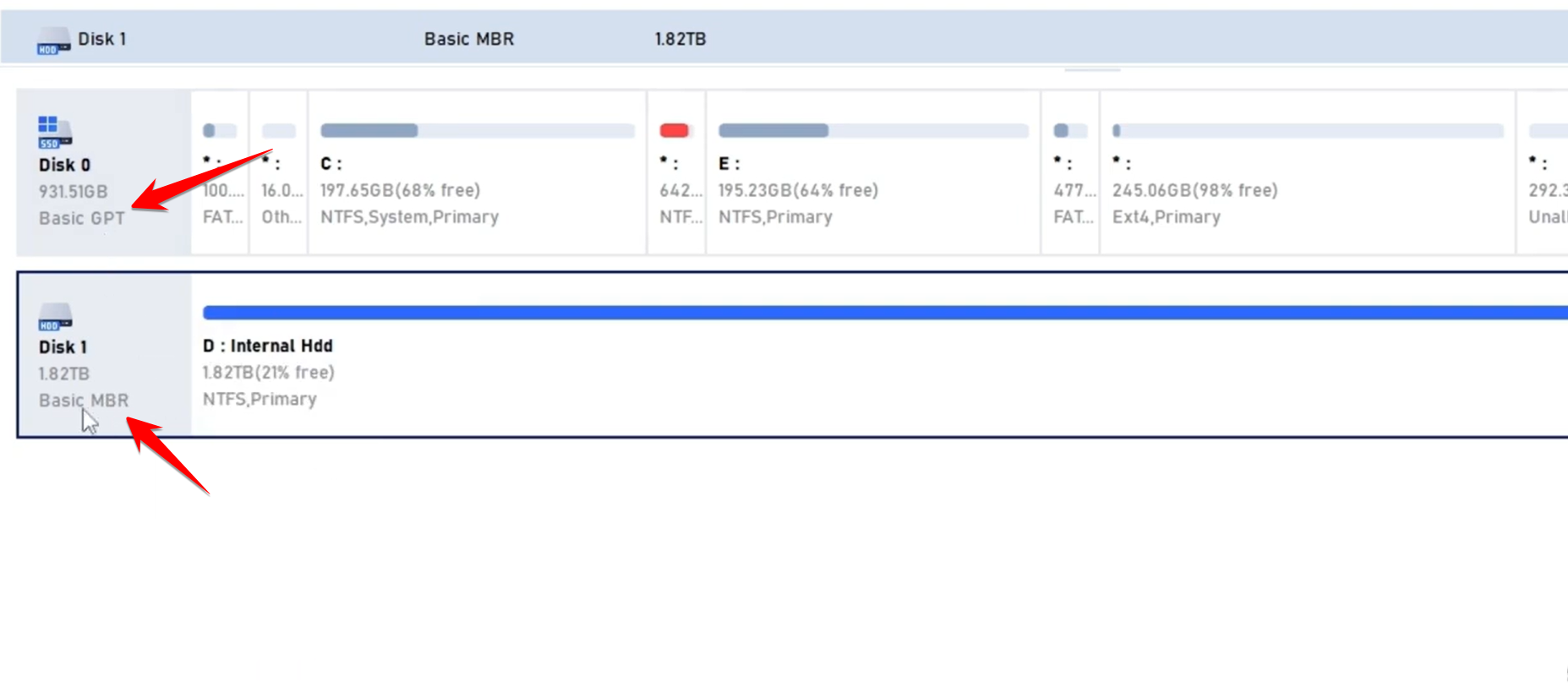
Switching between MBR and GPT schemes works with just a click too. MBR means Master Boot Record, while GPT is GUID Partition Table. You need this for newer systems or drives over 2TB.
Step-03
The tool goes further with security for your data. It is not just about basic formatting. You get options to wipe things clean or lock them down.
Selling a drive or tossing it out requires more than a quick format. Data can still linger and get pulled back. The Wipe Hard Drive option overwrites everything securely. It fills each bit with zeros, so recovery becomes impossible.
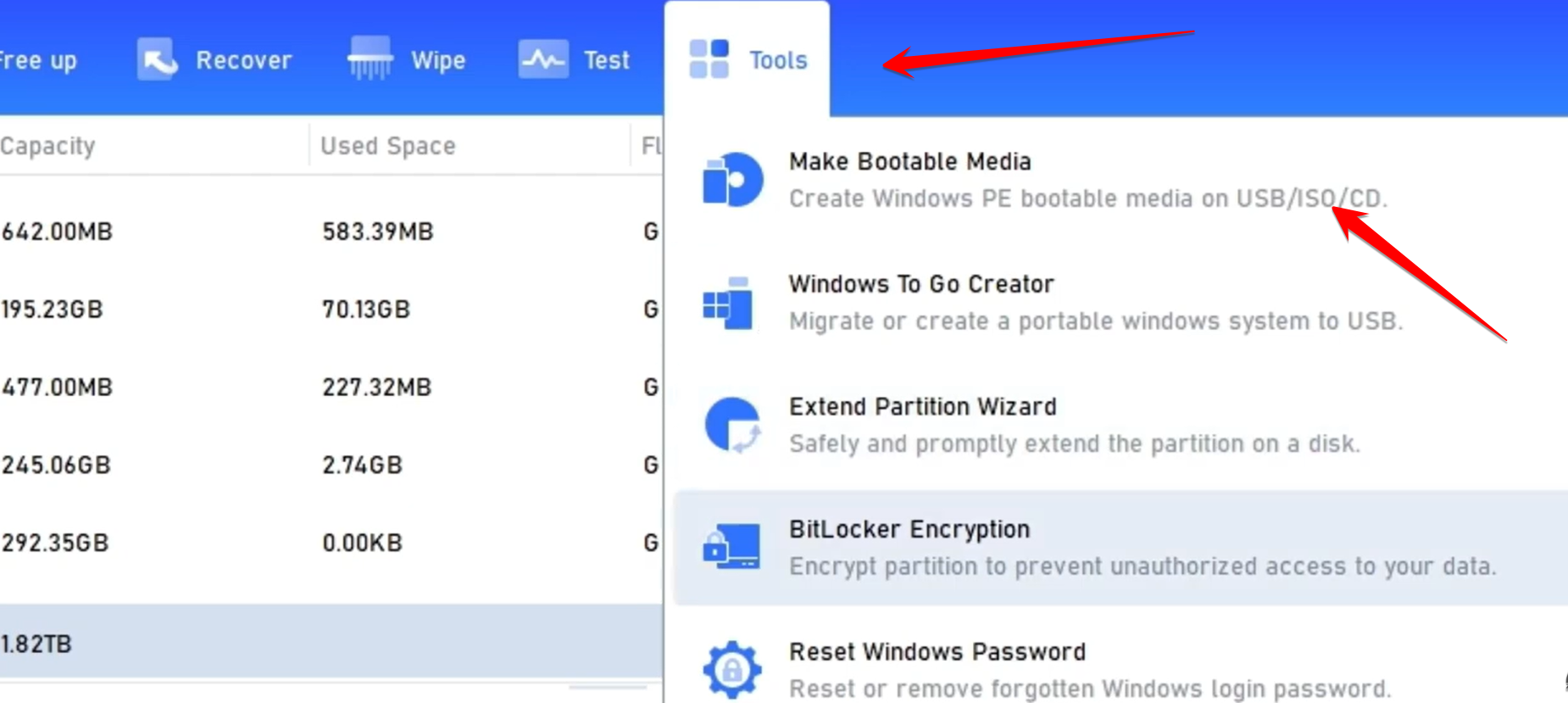
For protection on the go, manage BitLocker right in the app. Turn it on for specific partitions. That keeps sensitive info safe from prying eyes.

AOMEI pulls double duty as a spot for other disk jobs too.
Making bootable media is straightforward. Whip up a USB or CD/DVD that starts up your system.
Step-04
The Extend Partition Wizard simplifies growing or shrinking sections. Follow the prompts, and it handles the rest.
If you only need one partition copied, go for that instead of the full disk. It gives you flexibility.
Overall, AOMEI Partition Assistant proves reliable and user-friendly. It works great on Windows 10, 11, and Server setups. If you juggle several storage devices, this tool fits right in.