This video is a comprehensive guide on how to create a multi-boot USB drive using Ventoy, a tool that allows you to store and boot from multiple ISO files (like Windows and various Linux distributions) on a single USB stick without needing to flash each one individually.
Step: 01 (Started with Ventoy)
What is Ventoy? It is an open-source tool that lets you simply drag and drop ISO files onto a USB drive. When you boot from the USB, Ventoy provides a menu to select which OS to launch.
Requirements:
- A USB drive (at least 16GB is recommended)
- ISO files for the operating systems you want (e.g., Windows, Ubuntu, Rocky Linux)
- The Ventoy application, which can be downloaded from ventoy.net
Installation Process
- Download the latest Windows version from the official site and extract the contents
 .
. - Run
Ventoy2Diskas an administrator .
. - Ensure the correct USB drive is selected to avoid accidental data loss.
- You can enable Secure Boot Support if required by your hardware

- The default partition style is usually fine, but you can switch to GPT for drives larger than 2TB.

- Install: Click “Install.” You will be prompted several times to confirm that all data on the USB will be erased.

Step : 02 (Adding ISOs and Booting)
- Once installed, the USB will appear as an empty drive. Simply copy and paste your ISO files directly onto it.
- Plug the USB into the target computer and restart it.
- Enter your computer’s Boot Menu (common keys include F11, F12, F2, or ESC) and select the USB drive as the primary boot device.

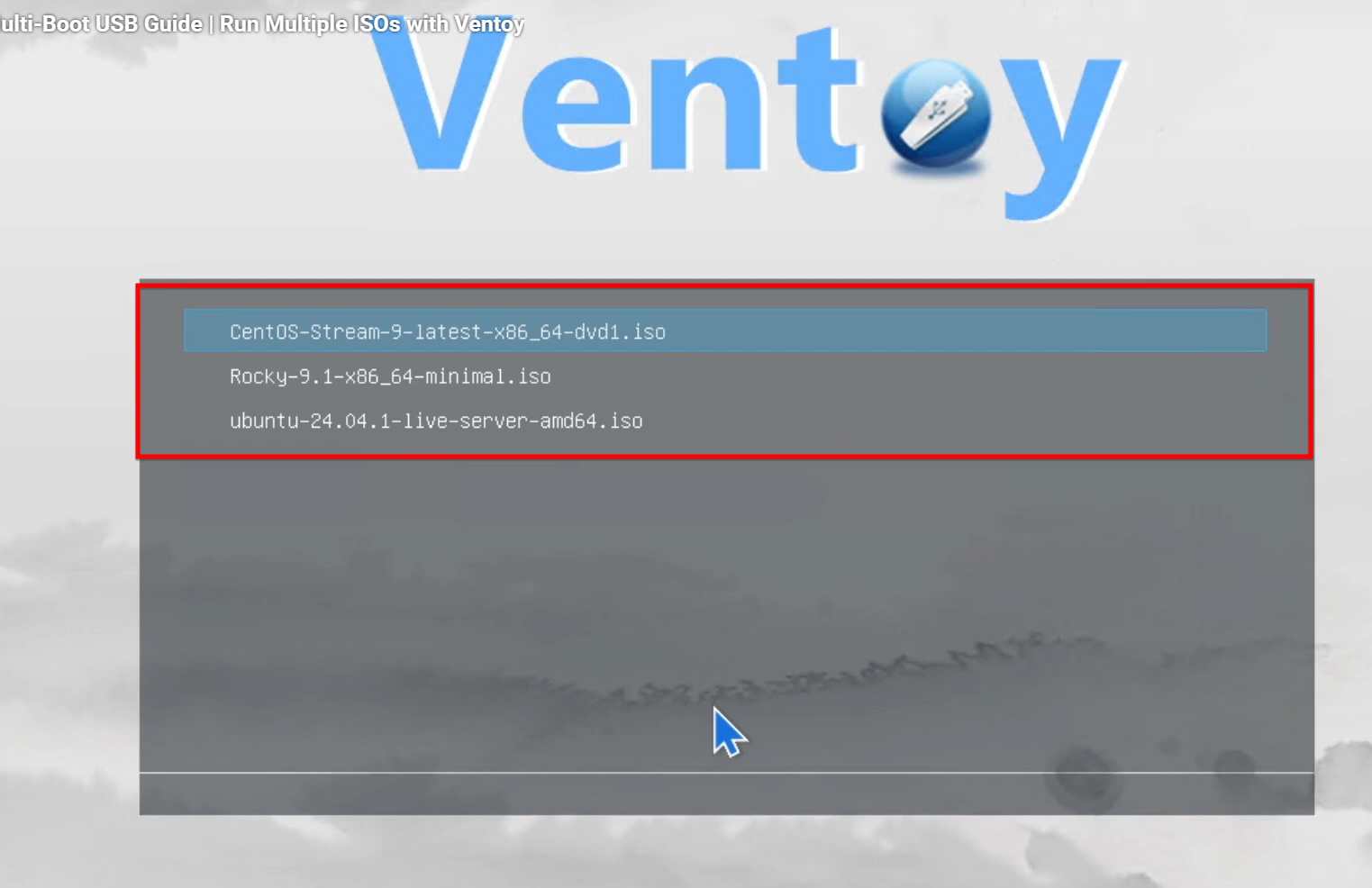
- The Ventoy menu will appear, allowing you to choose and boot into any of the ISOs you added.
- The narrator demonstrates the success of the process by booting into Ubuntu from a list that also includes CentOS and Rocky Linux.